AI Tools
The AI Tools add-on brings a Large Language Model (LLM)-powered assistant to your Jmix application. Out of the box, it provides a ready-to-use chat UI where users ask questions in natural language and the assistant answers them by calling tools. The add-on includes predefined tools tailored to Jmix applications and lets you add your own.
The add-on is built on top of Spring AI. It does not bundle a specific model provider. Instead, you choose and configure a Spring AI model such as OpenAI, Anthropic, Azure OpenAI, or Ollama, and the add-on uses it through the standard Spring AI ChatClient.
Overview
The add-on offers three groups of functionality:
-
Predefined tools. The add-on includes ready-made tools that the assistant can call. The current group, Data Load tools, lets the assistant inspect the available entities and their attributes, then generate, validate, and run a read-only JPQL query to load the requested data. See Tools.
-
Extensible tool registry. Any Spring bean can contribute its own tools, and you can override the predefined ones. The
AiToolRegistrycollects all application tools. See Custom Tools and the Registry. -
Chat UI. Ready-made views and reusable fragments let you embed a complete chat experience into your application, including a chat hub with conversation history and a single-conversation view. Chat history is persisted. See User Interface.
In addition, you can use the assistant programmatically from your own beans without the UI.
When the conversation belongs to your own domain, or the chat interface has to be yours, build your own from the AI Chat add-on. It provides a complete chat, the message list and message input it is assembled from, and a code block.
Add-on Structure
The add-on is split into layers, so you can include only what you need:
| Starter | Description |
|---|---|
|
Core layer: the tool registry, predefined tools, and the programmatic assistant API. It has no UI and no persistence. |
|
Flow UI layer: chat views, fragments, and the security role. By itself, it provides the UI shell but leaves the chat services as no-op stubs. |
|
Persistence layer: stores conversations and messages in the database and provides working implementations of the chat services. |
The starters build on each other: jmix-aitools-flowui-data-starter → jmix-aitools-flowui-starter → jmix-aitools-starter.
Installation
For automatic installation through Jmix Marketplace, follow the instructions in Add-ons.
For manual installation, add the following dependencies to your build.gradle:
implementation 'io.jmix.aitools:jmix-aitools-starter'
implementation 'io.jmix.aitools:jmix-aitools-flowui-starter'
implementation 'io.jmix.aitools:jmix-aitools-flowui-data-starter'
The add-on also requires a configured Spring AI model. See Getting Started for the complete setup.
|
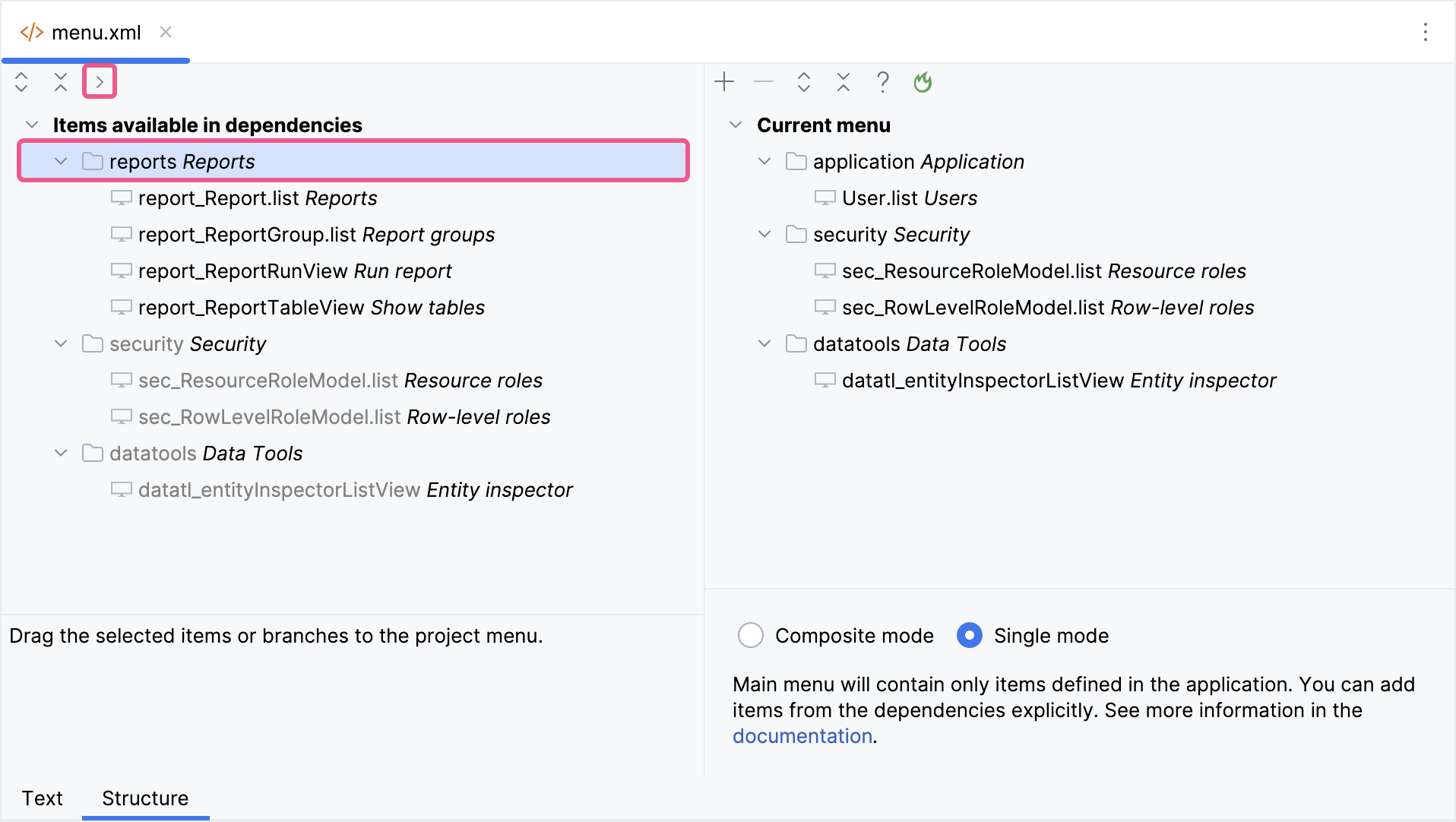
Important Note for Single Menu Mode Applications If your application uses Single menu mode, you should manually add menu items after installing an add-on.
This step is required because applications in Single menu mode do not automatically merge add-on menus with the existing structure. |