Troubleshooting
If you experience any problems while working on a project, try closing it and opening it again. If it doesn’t help, try to invalidate caches and restart the IDE:
-
Open File → Invalidate Caches from the main menu.
-
Select the Delete Jmix Studio templates and artifacts caches checkbox.
-
Click Invalidate and Restart.
Note that after reopening the project, reindexing project dependencies may take some time.
Known Problems
The following problems are rare but are known to exist based on user feedback. If you encounter any of these issues, please try the proposed resolution or report to the forum if the issue persists.
Community License: Advanced Features Unavailable for Small Projects
The Community License allows for the use of advanced Studio features for small projects with fewer than 10 entities and 10 security roles. If your project stays within these limits, but some features are inaccessible, try logging out and then logging back into your Jmix account.
Consistent Build Failures
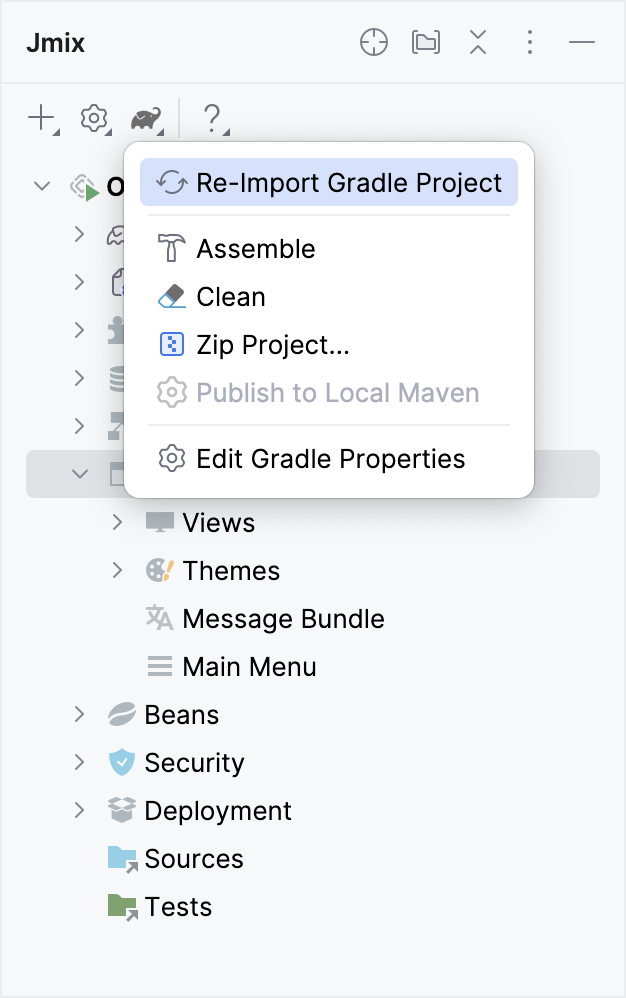
If your project consistently fails to build, running ./gradlew clean can help. This command removes the build directory containing build artifacts. You can run this command from the Jmix Tool Window:
If your project only runs after executing ./gradlew clean, this may indicate an underlying configuration issue.