genericFilter
The genericFilter component builds configurable conditions for a data loader and presents them as an interactive filter. genericFilter is added by default to standard entity views, such as list views.
XML Element |
|
|---|---|
Java Class |
|
Runtime Usage
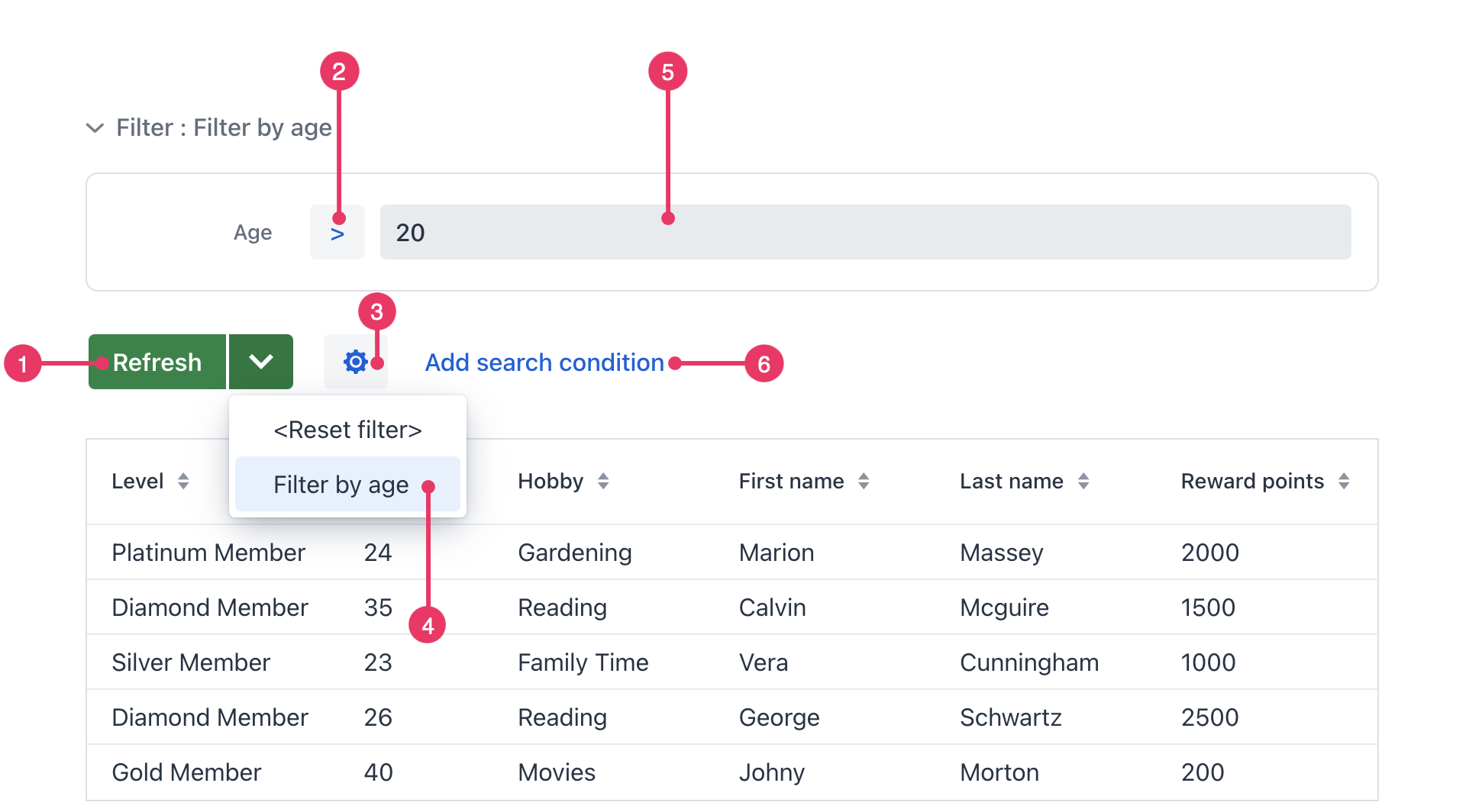
Depending on the filter configuration and granted permissions, users can:
-
Create a temporary filter that lasts while the current view is open. Users can enter condition values, change available operators, and reset the filter.
-
Apply saved filters and configuration already made available by the application. Users cannot edit or remove them, but can copy them when granted
ui.genericfilter.modifyConfiguration. -
Create new conditions using wizards. These are equivalent to those that developers can create:
-
Property condition – filters by an entity attribute.
-
JPQL condition – filters using a custom query.
-
Group condition – combine several conditions with
ANDorOR. -
Full-text search condition – search across configured entity attributes. It is available when the Search add-on is installed.
-
-
Save, edit, copy, and remove personal runtime configurations when granted
ui.genericfilter.modifyConfiguration. -
Make a runtime configuration available or default for all users when granted
ui.genericfilter.modifyGlobalConfiguration.
Basics
To operate, the component must reference the loader of a standalone CollectionContainer or KeyValueCollectionContainer. The component builds a Condition and assigns it to that loader; for JPA entities, the data store translates the condition into JPQL so filtering happens in the database.
The sample declares an initial age condition in XML and adds another property condition from Java. Keeping the XML and controller identifiers aligned is essential because the controller retrieves the existing configuration and extends it:
<data>
    <collection id="customersDc"
                class="io.jmix.uisamples.entity.Customer"
                fetchPlan="_local">
        <loader id="customersDl">
            <query>
                <![CDATA[select e from Customer e]]>
            </query>
        </loader>
    </collection>
</data>
<facets>
    <dataLoadCoordinator auto="true"/>
</facets>
<layout>
    <genericFilter id="genericFilter" dataLoader="customersDl">
        <properties include=".*"/>
    </genericFilter>
    <dataGrid id="customerDataGrid"
              dataContainer="customersDc"
              width="100%"
              minHeight="20em">
        <columns>
            <column property="name"/>
            <column property="lastName"/>
            <column property="age"/>
            <column property="active"/>
            <column property="grade"/>
        </columns>
    </dataGrid>
</layout>@ViewComponent
protected GenericFilter genericFilter;
@Autowired
protected UiComponents uiComponents;
@Autowired
protected SingleFilterSupport singleFilterSupport;
@Subscribe
protected void onBeforeShow(BeforeShowEvent event) {
initConfiguration();
}
protected void initConfiguration() {
DataLoader dataLoader = genericFilter.getDataLoader();
PropertyFilter<Integer> agePropertyFilter = craeteAgePropertyFilter(dataLoader);
genericFilter.getCurrentConfiguration().getRootLogicalFilterComponent().add(agePropertyFilter);
genericFilter.setCurrentConfiguration(genericFilter.getCurrentConfiguration());
}
protected PropertyFilter<Integer> craeteAgePropertyFilter(DataLoader dataLoader) {
PropertyFilter<Integer> agePropertyFilter = uiComponents.create(PropertyFilter.class);
agePropertyFilter.setConditionModificationDelegated(true);
agePropertyFilter.setDataLoader(dataLoader);
agePropertyFilter.setProperty("age");
agePropertyFilter.setOperation(PropertyFilter.Operation.GREATER_OR_EQUAL);
agePropertyFilter.setOperationEditable(true);
agePropertyFilter.setParameterName(PropertyConditionUtils.generateParameterName(
agePropertyFilter.getProperty()));
agePropertyFilter.setValueComponent(singleFilterSupport.generateValueComponent(
dataLoader.getContainer().getEntityMetaClass(),
agePropertyFilter.getProperty(),
agePropertyFilter.getOperation()
));
return agePropertyFilter;
}|
The data loader can have its own base condition, set in the loader’s |
Property Conditions
A propertyFilter converts an entity attribute and comparison operation into a data-loader condition. The property attribute accepts a direct or nested property path, and the component generates a value field that matches the property’s metadata.
Negative property operations follow the same null-handling rules as PropertyCondition. See jmix.data.include-null-clause-in-not-conditions.
|
In XML, the sample adds filters for customer and customer.grade to a design-time configuration. Both use the EQUAL operation and set operationEditable="true", so the configured operation initially appears as Equals but can be changed in the running view.
The Java example builds an equivalent configuration with the low-level API. Each PropertyFilter is connected to the genericFilter data loader, configured to delegate condition changes, and assigned a generated parameter name and value component. Finally, the filters are added to the configuration’s root logical component.
<genericFilter id="genericFilter" dataLoader="ordersDl">
    <properties include=".*"/>
    <configurations>
        <configuration id="defaultConfiguration" name="Configuration with property conditions" default="true">
            <propertyFilter property="customer" operation="EQUAL"
                            operationEditable="true"/>
            <propertyFilter property="customer.grade" operation="EQUAL"
                            operationEditable="true"/>
        </configuration>
    </configurations>
</genericFilter>@ViewComponent
protected GenericFilter genericFilter;
@Autowired
protected UiComponents uiComponents;
@Autowired
protected SingleFilterSupport singleFilterSupport;
@Subscribe
protected void onInit(InitEvent event) {
initConfiguration();
}
protected void initConfiguration() {
DesignTimeConfiguration javaConfiguration = genericFilter.addConfiguration("javaConfiguration",
"Programmatically defined configuration");
DataLoader dataLoader = genericFilter.getDataLoader();
javaConfiguration.getRootLogicalFilterComponent().add(createCustomerPropertyFilter(dataLoader));
javaConfiguration.getRootLogicalFilterComponent().add(createGradePropertyFilter(dataLoader));
}
protected PropertyFilter<Customer> createCustomerPropertyFilter(DataLoader dataLoader) {
PropertyFilter<Customer> customerPropertyFilter = uiComponents.create(PropertyFilter.class);
customerPropertyFilter.setConditionModificationDelegated(true);
customerPropertyFilter.setDataLoader(dataLoader);
customerPropertyFilter.setProperty("customer");
customerPropertyFilter.setOperation(PropertyFilter.Operation.EQUAL);
customerPropertyFilter.setOperationEditable(true);
customerPropertyFilter.setParameterName(PropertyConditionUtils.generateParameterName(
customerPropertyFilter.getProperty()));
customerPropertyFilter.setValueComponent(singleFilterSupport.generateValueComponent(
dataLoader.getContainer().getEntityMetaClass(),
customerPropertyFilter.getProperty(),
customerPropertyFilter.getOperation()
));
return customerPropertyFilter;
}
protected PropertyFilter<CustomerGrade> createGradePropertyFilter(DataLoader dataLoader) {
PropertyFilter<CustomerGrade> gradePropertyFilter = uiComponents.create(PropertyFilter.class);
gradePropertyFilter.setConditionModificationDelegated(true);
gradePropertyFilter.setDataLoader(dataLoader);
gradePropertyFilter.setProperty("customer.grade");
gradePropertyFilter.setOperation(PropertyFilter.Operation.EQUAL);
gradePropertyFilter.setOperationEditable(true);
gradePropertyFilter.setParameterName(PropertyConditionUtils.generateParameterName(
gradePropertyFilter.getProperty()));
gradePropertyFilter.setValueComponent(singleFilterSupport.generateValueComponent(
dataLoader.getContainer().getEntityMetaClass(),
gradePropertyFilter.getProperty(),
gradePropertyFilter.getOperation()
));
return gradePropertyFilter;
}JPQL Conditions
A jpqlFilter defines a custom JPQL predicate for cases that cannot be expressed as a property comparison. The sample filters orders by a product in the items collection: the join clause introduces the collection alias, and the where clause compares the product identifier with the filter parameter.
The XML example declares the JPQL-condition namespace, sets Product as the parameter class, and nests the join and where clauses inside condition. At runtime, the parameter class determines the type of value component displayed for the condition.
The Java example creates the same filter through the low-level API. It passes the where and join clauses to setCondition(), assigns the parameter class and label, generates a parameter name and compatible value component, and adds the filter to a programmatically created design-time configuration.
Use the following syntax when defining a JPQL condition:
-
Start an optional
joinclause withjoinorleft join, and use{E}instead of the data-loader entity alias. -
In the
whereclause, use{E}for the entity alias and?for the value supplied by the filter. A condition can contain only one?parameter, but it can also contain session and user attribute parameters. -
For a collection-valued parameter used in an
INexpression, enable the filter’shasInExpressionproperty.
<view xmlns="http://jmix.io/schema/flowui/view"
      xmlns:c="http://jmix.io/schema/flowui/jpql-condition">
        <genericFilter id="genericFilter" dataLoader="ordersDl">
            <properties include=".*"/>
            <configurations>
                <configuration id="defaultConfiguration" name="Configuration with JPQL condition" default="true">
                    <jpqlFilter label="Order items contains"
                                parameterClass="io.jmix.uisamples.entity.Product">
                        <condition>
                            <c:jpql>
                                <c:join>join {E}.items i</c:join>
                                <c:where>i.product.id = ?</c:where>
                            </c:jpql>
                        </condition>
                    </jpqlFilter>
                </configuration>
            </configurations>
</genericFilter>@ViewComponent
protected GenericFilter genericFilter;
@Autowired
protected UiComponents uiComponents;
@Autowired
protected JpqlFilterSupport jpqlFilterSupport;
@Autowired
protected SingleFilterSupport singleFilterSupport;
@Subscribe
protected void onInit(InitEvent event) {
initConfiguration();
}
protected void initConfiguration() {
DesignTimeConfiguration javaConfiguration = genericFilter.addConfiguration("javaConfiguration",
"Programmatically defined configuration");
DataLoader dataLoader = genericFilter.getDataLoader();
javaConfiguration.getRootLogicalFilterComponent().add(createProductJpqlFilter(dataLoader));
}
protected JpqlFilter<Product> createProductJpqlFilter(DataLoader dataLoader) {
JpqlFilter<Product> jpqlFilter = uiComponents.create(JpqlFilter.class);
jpqlFilter.setConditionModificationDelegated(true);
jpqlFilter.setDataLoader(dataLoader);
jpqlFilter.setCondition("i.product.id = ?", "join {E}.items i");
jpqlFilter.setParameterClass(Product.class);
jpqlFilter.setLabel("Order items contains");
jpqlFilter.setParameterName(jpqlFilterSupport.generateParameterName(
jpqlFilter.getId().orElse(null),
jpqlFilter.getParameterClass().getSimpleName()));
jpqlFilter.setValueComponent(singleFilterSupport.generateValueComponent(
dataLoader.getContainer().getEntityMetaClass(),
jpqlFilter.hasInExpression(),
jpqlFilter.getParameterClass()
));
return jpqlFilter;
}Group Conditions
A groupFilter combines nested filter components with AND or OR. Groups can be nested, and the configuration’s root logical component combines its direct children with its own operation.
The XML example creates an OR group containing the active and grade property filters. The age filter is outside that group, so the default root operation produces the following expression:
(active = false OR grade = STANDARD) AND age >= 30
The Java example constructs the same tree explicitly. It creates the group and property filters, adds the property filters to the group, and then adds the group and the age filter to the configuration root. It sets both each component’s current value and the configuration’s stored default value, ensuring that the same values are restored when the configuration is selected.
<genericFilter id="genericFilter" dataLoader="customersDl">
    <properties include=".*"/>
    <configurations>
        <configuration id="defaultConfiguration" name="Configuration with conditions grouping" default="true">
            <groupFilter operation="OR">
                <propertyFilter property="active" operation="EQUAL"
                                operationEditable="true" defaultValue="false"/>
                <propertyFilter property="grade" operation="EQUAL"
                                operationEditable="true" defaultValue="30"/>
            </groupFilter>
            <propertyFilter property="age" operation="GREATER_OR_EQUAL"
                            operationEditable="true" defaultValue="30"/>
        </configuration>
    </configurations>
</genericFilter>@ViewComponent
protected GenericFilter genericFilter;
@Autowired
protected UiComponents uiComponents;
@Autowired
protected SingleFilterSupport singleFilterSupport;
@Autowired
protected LogicalFilterSupport logicalFilterSupport;
@Subscribe
protected void onInit(InitEvent event) {
initConfiguration();
}
protected void initConfiguration() {
DesignTimeConfiguration javaConfiguration = genericFilter.addConfiguration("javaConfiguration",
"Programmatically defined configuration");
DataLoader dataLoader = genericFilter.getDataLoader();
GroupFilter groupFilter = createGroupFilter(dataLoader);
PropertyFilter<Boolean> activePropertyFilter = createActivePropertyFilter(dataLoader);
PropertyFilter<CustomerGrade> gradePropertyFilter = createGradePropertyFilter(dataLoader);
groupFilter.add(activePropertyFilter);
groupFilter.add(gradePropertyFilter);
PropertyFilter<Integer> agePropertyFilter = createAgePropertyFilter(dataLoader);
javaConfiguration.getRootLogicalFilterComponent().add(groupFilter);
javaConfiguration.getRootLogicalFilterComponent().add(agePropertyFilter);
activePropertyFilter.setValue(false);
javaConfiguration.setFilterComponentDefaultValue(activePropertyFilter.getParameterName(), false);
gradePropertyFilter.setValue(CustomerGrade.STANDARD);
javaConfiguration.setFilterComponentDefaultValue(gradePropertyFilter.getParameterName(), CustomerGrade.STANDARD);
agePropertyFilter.setValue(30);
javaConfiguration.setFilterComponentDefaultValue(agePropertyFilter.getParameterName(), 30);
}
protected GroupFilter createGroupFilter(DataLoader dataLoader) {
GroupFilter groupFilter = uiComponents.create(GroupFilter.class);
groupFilter.setConditionModificationDelegated(true);
groupFilter.setDataLoader(dataLoader);
groupFilter.setOperation(LogicalFilterComponent.Operation.OR);
return groupFilter;
}
protected PropertyFilter<Boolean> createActivePropertyFilter(DataLoader dataLoader) {
PropertyFilter<Boolean> activePropertyFilter = uiComponents.create(PropertyFilter.class);
activePropertyFilter.setConditionModificationDelegated(true);
activePropertyFilter.setDataLoader(dataLoader);
activePropertyFilter.setProperty("active");
activePropertyFilter.setOperation(PropertyFilter.Operation.EQUAL);
activePropertyFilter.setOperationEditable(true);
activePropertyFilter.setParameterName(PropertyConditionUtils.generateParameterName(
activePropertyFilter.getProperty()));
activePropertyFilter.setValueComponent(singleFilterSupport.generateValueComponent(
dataLoader.getContainer().getEntityMetaClass(),
activePropertyFilter.getProperty(),
activePropertyFilter.getOperation()
));
return activePropertyFilter;
}
protected PropertyFilter<CustomerGrade> createGradePropertyFilter(DataLoader dataLoader) {
PropertyFilter<CustomerGrade> gradePropertyFilter = uiComponents.create(PropertyFilter.class);
gradePropertyFilter.setConditionModificationDelegated(true);
gradePropertyFilter.setDataLoader(dataLoader);
gradePropertyFilter.setProperty("grade");
gradePropertyFilter.setOperation(PropertyFilter.Operation.EQUAL);
gradePropertyFilter.setOperationEditable(true);
gradePropertyFilter.setParameterName(PropertyConditionUtils.generateParameterName(
gradePropertyFilter.getProperty()));
gradePropertyFilter.setValueComponent(singleFilterSupport.generateValueComponent(
dataLoader.getContainer().getEntityMetaClass(),
gradePropertyFilter.getProperty(),
gradePropertyFilter.getOperation()
));
return gradePropertyFilter;
}
protected PropertyFilter<Integer> createAgePropertyFilter(DataLoader dataLoader) {
PropertyFilter<Integer> agePropertyFilter = uiComponents.create(PropertyFilter.class);
agePropertyFilter.setConditionModificationDelegated(true);
agePropertyFilter.setDataLoader(dataLoader);
agePropertyFilter.setProperty("age");
agePropertyFilter.setOperation(PropertyFilter.Operation.GREATER_OR_EQUAL);
agePropertyFilter.setOperationEditable(true);
agePropertyFilter.setParameterName(PropertyConditionUtils.generateParameterName(
agePropertyFilter.getProperty()));
agePropertyFilter.setValueComponent(singleFilterSupport.generateValueComponent(
dataLoader.getContainer().getEntityMetaClass(),
agePropertyFilter.getProperty(),
agePropertyFilter.getOperation()
));
return agePropertyFilter;
}Design-time Configuration
A filter configuration is a named tree of conditions registered with genericFilter. A design-time configuration is declared in the XML view descriptor with the filter’s configurations element.
The sample declares three property filters in one configuration. The default="true" attribute makes this configuration active when the view opens, so its default values are immediately reflected in the generated fields:
<genericFilter id="genericFilter" dataLoader="customersDl">
    <properties include=".*"/>
    <configurations>
        <configuration id="defaultConfiguration" name="Configuration with multiple conditions"
                       default="true">
            <propertyFilter property="age" operation="GREATER_OR_EQUAL"
                            operationEditable="true" defaultValue="30"/>
            <propertyFilter property="grade" operation="EQUAL"
                            operationEditable="true" defaultValue="20"/>
            <propertyFilter property="active" operation="EQUAL"
                            operationEditable="true" defaultValue="true"/>
        </configuration>
    </configurations>
</genericFilter>
Ensure that each configuration specifies an id attribute and its value is unique within this genericFilter. If the name attribute is not specified, id is treated as a key in the message bundle. The default configuration can be set with the default attribute.
To add a design-time configuration in Jmix Studio, select the genericFilter component in the view descriptor or in the Jmix UI structure panel, then use Add → Configurations → Design-time configuration menu item of the Component Inspector panel.
|
A design-time configuration appears in the configuration selector, but its condition tree cannot be edited or removed at runtime. The Copy action creates an editable runtime configuration from it; see Saving and Managing Configurations.
Creating Filter Programmatically
You can create and configure a genericFilter in Java using the fluent builder API, which has two entry points:
-
filterComponentBuilder()creates filter components –propertyFilter,jpqlFilter, andgroupFilter. -
runtimeConfigurationBuilder()assembles aRunTimeConfigurationfrom those components and registers it with the filter.
The builder performs all the required initialization internally (condition modification delegation, parameter name and value component generation), so a programmatically built component behaves exactly like one declared in XML. The owning genericFilter must have a DataLoader; otherwise the builder methods throw IllegalStateException.
| The builder API is currently experimental and may change in a future Jmix release. |
The following example creates a genericFilter, builds a property condition, and registers a configuration:
@Autowired
private UiComponents uiComponents;

@ViewComponent
private VerticalLayout programmaticFilterBox;

@ViewComponent
private CollectionLoader<Customer> customerDl;

@Subscribe
public void onInit(final InitEvent event) {
    GenericFilter genericFilter = uiComponents.create(GenericFilter.class); (1)
    genericFilter.setId("programmaticFilter");
    genericFilter.setDataLoader(customerDl);
    genericFilter.loadConfigurationsAndApplyDefault();
    programmaticFilterBox.add(genericFilter); (2)

    PropertyFilter<Integer> agePropertyFilter = genericFilter.filterComponentBuilder() (3)
            .<Integer>propertyFilter()
            .property("age")
            .operation(PropertyFilter.Operation.LESS_OR_EQUAL)
            .operationEditable(true)
            .build();

    genericFilter.runtimeConfigurationBuilder() (4)
            .id("javaConfiguration")
            .name("Default configuration")
            .add(agePropertyFilter)
            .makeCurrent() (5)
            .buildAndRegister(); (6)
}| 1 | Creates genericFilter using the uiComponents factory. |
| 2 | Puts genericFilter on the view inside the vbox layout declared in the view descriptor and injected into the controller. |
| 3 | Builds a PropertyFilter with filterComponentBuilder(). |
| 4 | Registers a runtime configuration with runtimeConfigurationBuilder() and adds the filter to it. |
| 5 | Activates the configuration immediately. This is not the persistent default-configuration marker; it simply makes the configuration current. |
| 6 | Builds and registers the configuration. Each builder instance is single-use. |
Building Filter Components
filterComponentBuilder() returns a dedicated builder for each component type. All builders are single-use and produce a ready-to-add component.
Property Filter
propertyFilter() filters by an entity attribute, including nested references — property() accepts a path such as customer.city.name. The value editor is generated automatically from the attribute type. The operation is fixed unless you call operationEditable(true), which lets the user change it at runtime; operationTextVisible(false) hides the operation label shown next to the field. A value passed to defaultValue() pre-fills the field.
PropertyFilter<Integer> ageFilter = genericFilter.filterComponentBuilder()
        .<Integer>propertyFilter()
        .property("age")
        .operation(PropertyFilter.Operation.GREATER_OR_EQUAL)
        .operationEditable(true)
        .build();
JPQL Filter (Checkbox)
jpqlFilter() (no argument) creates a void filter: a checkbox that toggles a fixed WHERE clause on and off. Its value type is Boolean, so defaultValue(true) makes the condition active by default.
JpqlFilter<Boolean> hasRewardPoints = genericFilter.filterComponentBuilder()
        .jpqlFilter()
        .where("{E}.rewardPoints > 0")
        .label("Has reward points")
        .defaultValue(true)
        .build();
JPQL Filter (Typed)
jpqlFilter(Class) creates a typed filter: the value the user enters is bound to a query parameter, and its editor matches the given Class. Write the condition in where() using {E} as the entity alias and a named parameter, then declare its name with parameterName(). Add join() to extend the FROM clause, or hasInExpression(true) when the value is a collection (an in condition).
JpqlFilter<Integer> minAge = genericFilter.filterComponentBuilder()
        .jpqlFilter(Integer.class)
        .where("{E}.age >= :minAge")
        .parameterName("minAge")
        .label("Minimum age")
        .build();
Group Filter
groupFilter() combines conditions under a single logical operation — AND (the default) or OR. A group is itself a filter component, so groups can be nested to express complex boolean logic. Add children with add() or addAll().
GroupFilter orGroup = genericFilter.filterComponentBuilder()
        .groupFilter()
        .operation(LogicalFilterComponent.Operation.OR)
        .addAll(hasRewardPoints, minAge)
        .build();
Building Runtime Configuration
runtimeConfigurationBuilder() creates a RunTimeConfiguration and registers it with the filter.
genericFilter.runtimeConfigurationBuilder()
        .id("dynamicConfiguration")
        .name("Dynamic configuration")
        .add(ageFilter, 18) (1)
        .add(orGroup) (2)
        .makeCurrent() (3)
        .allowDeletion() (4)
.buildAndRegister();| 1 | Adds a component with a typed default value; the value type is checked at compile time. Use add(component) without a default, or addAll(components…) to add several at once. |
| 2 | Adds the group built above. |
| 3 | Activates the configuration immediately. This is not the persistent default-configuration marker. |
| 4 | Allows the user to delete this configuration. By default, configurations created with the builder are protected from user deletion. |
Keep in mind:
-
Each builder instance is single-use — calling
build()orbuildAndRegister()twice throwsIllegalStateException. -
The configuration
idmust be unique within the filter. -
The owning
genericFiltermust have aDataLoader.
The builder creates a RunTimeConfiguration. There is no builder for a DesignTimeConfiguration. To create configurations programmatically at a lower level, use addConfiguration(id, name) (which returns a DesignTimeConfiguration) and create and add the filter components directly, or build a RunTimeConfiguration and register it with addConfiguration(configuration). This is the lower-level approach that the builder API replaces.
|
| For runnable examples of every builder feature, see the GenericFilter section of the UI samples. |
Permissions
Grant the following specific permissions to enable users configure filter:
-
ui.genericfilter.modifyConfigurationallows users to create, edit, and remove their own runtime configurations. -
ui.genericfilter.modifyGlobalConfigurationallows users to create, edit, and remove configurations available to all users. -
ui.genericfilter.modifyJpqlConditionallows users to create and change JPQL conditions at runtime.
Theme Variants
Use themeNames attribute to set a component theme.
| Variant | Description | Supported By |
|---|---|---|
|
Applies a filled background style to the filter header. |
Aura, Lumo |
|
Places the toggle indicator before the summary text. |
Aura, Lumo |
|
Makes the filter header more compact. |
Aura, Lumo |
Attributes
The following attributes are specific to genericFilter:
| Name | Description | Default |
|---|---|---|
Sets the keyboard shortcut that applies non-automatic conditions. |
||
Controls whether a changed condition is applied immediately. When |
||
References the data loader that receives the generated condition. |
— |
|
Controls whether the condition panel is expanded. |
|
|
Sets how many levels of nested entity properties can be offered as conditions. |
|
|
Sets the summary displayed above the condition panel. |
|
The following shared attributes are supported by genericFilter:
Handlers
The following handlers are specific to genericFilter:
| Name | Description |
|---|---|
Fired when the current configuration changes, including selection and reset operations. |
|
Fired after the current configuration is edited. |
|
Fired when the |
|
Tests entity properties before they are offered for user-created property conditions. |
The following shared handlers are supported by genericFilter:
Elements
A genericFilter can contain actions, conditions, configurations, properties, responsiveSteps, and tooltip elements. The following subsections describe the filter-specific configuration elements.
actions
Defines the list of actions for filter management. The framework provides the following default actions available in the Filter Settings  menu:
menu:
-
Save — saves changes to current configuration. Implemented by
FilterSaveAction(type="genericFilter_save"in XML). -
Save with values — saves changes to current configuration along with the values in the condition fields [5] as their default values.
-
Save as — saves current configuration under a different name. Implemented by
FilterSaveAsAction(type="genericFilter_saveAs"in XML). -
Edit — opens the editor for the current runtime configuration. Disabled for design-time configurations. Implemented by
FilterEditAction(type="genericFilter_edit"in XML). -
Remove — removes the current runtime configuration. Disabled for design-time configurations. Implemented by
FilterRemoveAction(type="genericFilter_remove"in XML). -
Copy — creates a runtime copy of the current configuration. Implemented by
FilterCopyAction(type="genericFilter_copy"in XML). -
Clear values — clears the values in the condition fields [5]. Implemented by
FilterClearValuesAction(`type="genericFilter_clearValues" in XML). -
Add — adds a condition to the current configuration. Implemented by
FilterAddConditionAction(type="genericFilter_addCondition"in XML). -
Reset — returns the component to an empty quick filter. Implemented by
FilterResetAction(type="genericFilter_reset"in XML).
Developers can override the list of actions in the menu:
<genericFilter id="filterWithActions" dataLoader="customerDl">
    <properties include=".*"/>
    <actions>
        <action id="addCondition" type="genericFilter_addCondition"/>
        <action id="clearValues" type="genericFilter_reset"/>
    </actions>
</genericFilter>
The example replaces the default action list with Add and Reset.
conditions
Holds a declaration of predefined conditions.
See the following example for illustration:
<genericFilter id="filterWithCondition" dataLoader="customerDl">
    <properties include=".*"/>
    <conditions>
        <propertyFilter property="hobby" enabled="true" operation="STARTS_WITH"/>
    </conditions>
</genericFilter>
configurations
Holds a declaration of design-time configurations.
properties
Determines which entity attributes can be added to condition. This element has the following attributes:
-
include— specifies a regular expression. Entity attributes that match this expression are included. -
exclude— specifies a regular expression. Entity attributes that match this expression are excluded. -
excludeProperties— specifies a comma-separated list of property names or property paths that should be excluded. For example:customer.name. -
excludeRecursively— determines whether the attribute inexcludePropertiesmust be recursively excluded for the whole object graph. That is, if 'true', any children attributes of the excluded attribute are excluded as well.
See the following example for illustration:
<genericFilter id="filterWithProperties" dataLoader="customerDl">
    <properties include=".*"
                exclude="(hobby)|(age)"
                excludeProperties="id"
                excludeRecursively="true"/>
</genericFilter>|
You can include and exclude collection ( |
|
You can include and exclude dynamic attributes as a filtering condition. This doesn’t require the dynamicAttributes facet on that view. Specify the attribute’s code with a + prefix: Note that if such attribute is an entity, rather than a simple value, you cannot use the attributes of that entity as part of a filtering condition. |
The following entity attributes are ignored:
-
Not accessible due to security permissions
-
Non-persistent attributes
-
Attributes annotated with
@SystemLevel -
Attributes of
byte[]type
responsiveSteps
Determines the number of columns to display search conditions based on the available space. By default, search conditions are arranged in two columns and adjust to a single column when the layout width is smaller.
The following filter overrides the default behaviour to adjust the layout to one, two, or three columns with labels positioned on top:
<layout>
    <genericFilter dataLoader="customerDl">
        <responsiveSteps>
            <responsiveStep minWidth="0" columns="1"/>
            <responsiveStep minWidth="30em" columns="2"/>
            <responsiveStep minWidth="50em" columns="3" labelsPosition="TOP"/>
        </responsiveSteps>
    </genericFilter>
</layout>