Version Control
When versioning is enabled for a document, the add-on never overwrites its content. Each change is stored as a separate WebdavDocumentVersion instance, so the document keeps its full history and any earlier version remains available.
Versions are created in two ways:
-
Automatically, whenever the document content is written to the server: when a user saves the document in a desktop application, or when a WebDAV client uploads a new content. The new version is added after the current latest one.
-
Manually, in the WebDAV document versions view described below.
Versioning is enabled by default for all attributes of the WebdavDocument type. You can disable it for a particular attribute with the @WebdavSupport annotation, or globally with the jmix.webdav.versioning-enabled property.
WebDAV Document Versions
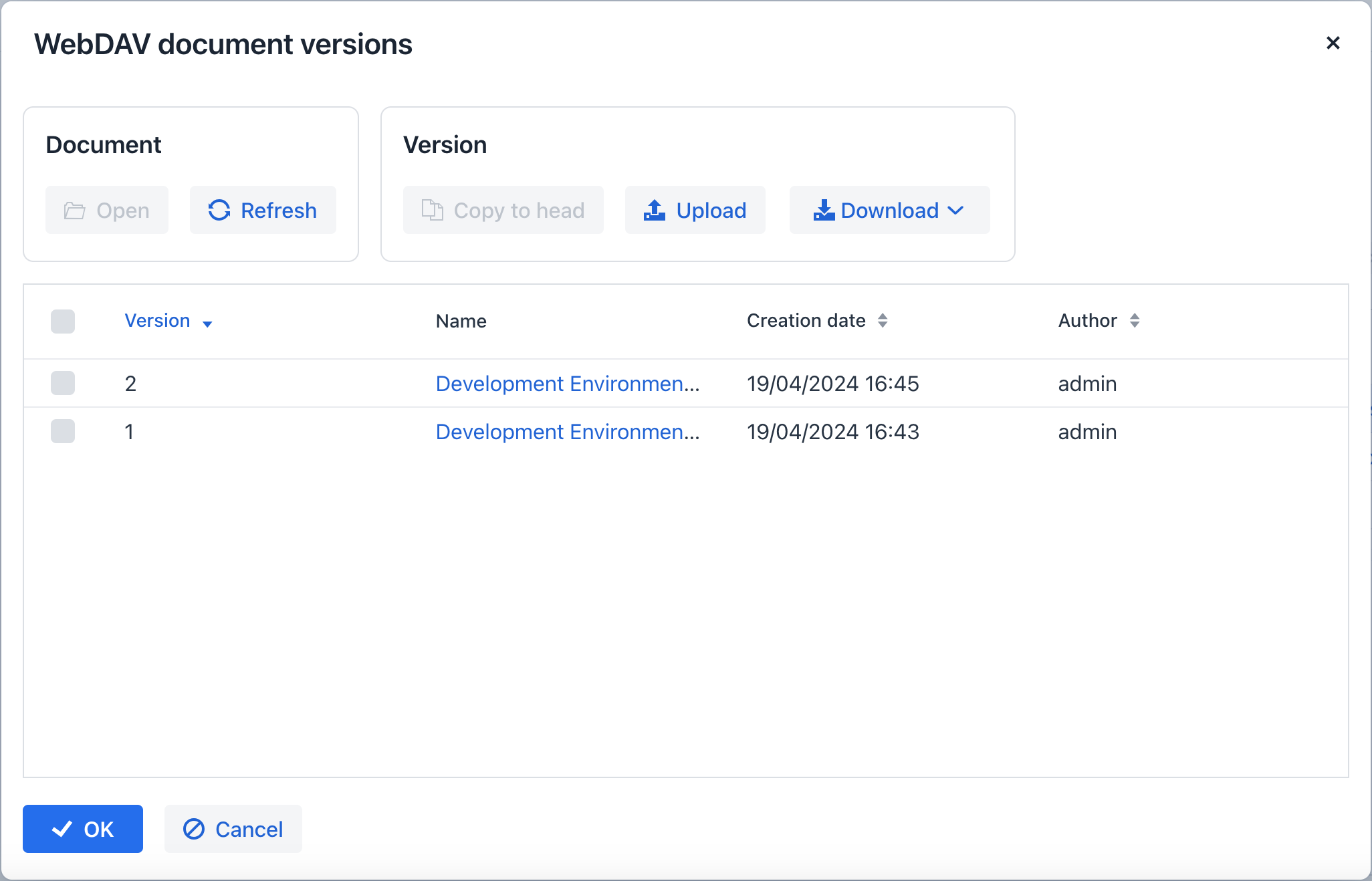
The WebDAV document versions view shows the history of a document and lets you manage it: add versions, base a new version on an older one, open a particular version, and download versions as files. It is the only place in the UI where you work with the version history directly, rather than by editing the document itself.
There are two ways to access the WebDAV document versions view:
-
Via the WebdavDocumentUploadField component by clicking on the link that displays the version number of a document.

-
Via the Manage versions button on the WebDAV Documents view.
Once you have performed either of these actions, the WebDAV document versions dialog window will be displayed.
Pending Versions
Versions that you add in this dialog are not stored immediately. They exist only in the dialog until you save it, and their numbers are marked with the * symbol to show that they are not yet linked to the document.
When you save the dialog, the pending versions are stored and their numbers are finalized. If you close the dialog without saving, they are never linked to the document and are eventually deleted by the WebdavDocumentVersionsCleaningJob.
| The Refresh button reloads the history from the database and discards all pending versions. If you copied or uploaded a version but have not saved the dialog yet, those versions are lost. |
Operations
The WebDAV document versions dialog supports the following operations:
-
Creating a new version: click Upload and select files to upload. The uploaded files are numbered after the current latest version and marked as pending.
-
Creating a new version based on an existing one: select a version and click Copy to head. Its content is copied into a new version numbered after the current latest version and marked as pending. Use it to return to an earlier state of the document without losing the versions created in between.
-
Opening the document for editing: click Open to open the document in the associated desktop application. This always opens the latest version with full access, regardless of the version selected in the table. Each time the document is saved in the desktop application, a new version is sent to the server, so use Refresh to see it in the table.
-
Opening a version for reading: click the link with the file name. The selected version is opened in read-only mode.
-
Downloading versions: the Download button downloads the selected versions as separate files. The Download as ZIP option packs them into a single
files.ziparchive. In both cases the version number is added to the file name, for example,example-v3.docxanddocument-v1.docx.
Conflict Resolution Policies
A conflict resolution policy defines how the add-on reconciles the versions you added in the WebDAV document versions dialog with the versions that appeared in the database while the dialog was open.
A conflict is possible only when you save that dialog. It occurs if the document has been modified after the dialog loaded it, regardless of the source of the modification: another user working in the same dialog, a desktop application saving the document, a WebDAV client, or application code calling the add-on services.
The add-on provides the following conflict resolution policies:
| Policy | Description |
|---|---|
Applied by default if a conflict occurs. Nothing is saved: a warning is displayed and the versions you added in the dialog are discarded. The stored history remains unchanged. |
|
Keeps both sets of versions. Your versions are renumbered to continue after the last version stored in the database, so nothing is lost. |
|
Keeps the versions you added in the dialog and deletes the versions that were stored in the database meanwhile. |
|
Keeps the versions stored in the database and deletes the versions you added in the dialog. |
|
|
Applied automatically when there is no conflict. All versions from the dialog are saved. You cannot select it as a conflict resolution policy. |
Comparing Policy Outcomes
To illustrate the difference between the policies, consider a document that has versions 1, 2, and 3. You open the WebDAV document versions dialog and upload a file, which appears as pending version 4*. Meanwhile, another user saves the same document twice from a desktop application, so the document in the database now has versions 4 and 5. Then you save the dialog.
The result depends on the policy:
| Policy | Versions after saving |
|---|---|
|
|
|
|
|
|
|
|
If the other user had not saved the document, there would be no conflict: the FastForwardMergePolicy would be applied and your upload would be saved as version 4.
Overriding Default Conflict Resolution Policy
To override the default conflict resolution policy, declare a bean of the DefaultMergePolicy type in a Spring configuration class. This bean should provide the specific merge policy required. For example:
@Bean
public DefaultMergePolicy defaultMergePolicy() {
    return RebaseMergePolicy::new;
}