aiChat
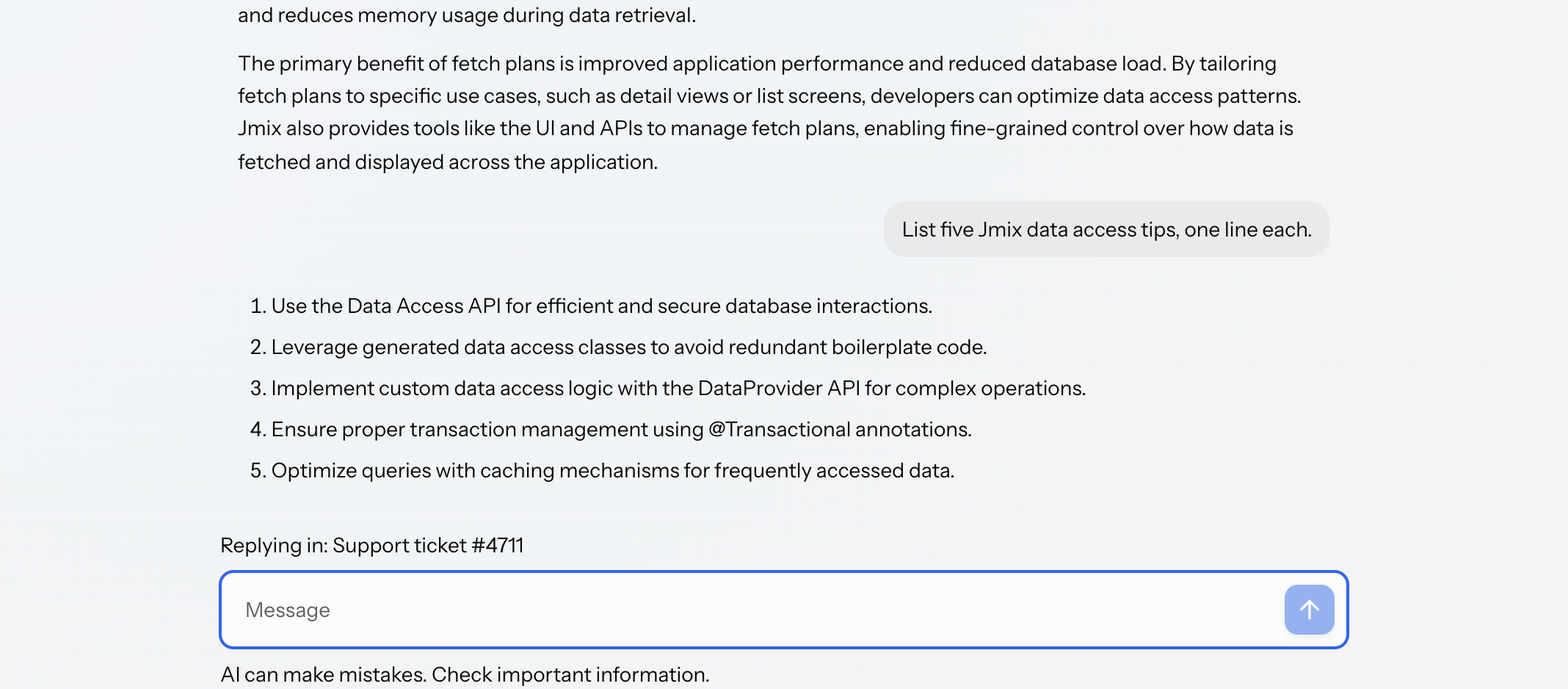
The aiChat component is a complete chat: a message list, a message input, an empty state, and the generation cycle that connects them to a language model.
XML Element |
|
|---|---|
Java Class |
|
It composes aiMessageList and aiMessageInput and configures both on your behalf, so most of what those pages describe is reachable from here as well.
Basics
A chat needs an element and a provider. The element:
<aichat:aiChat id="chat" width="100%" height="100%"/>And the provider, which is the one function the component asks the application for, described in Connecting a Model:
@Autowired
private ChatClient.Builder chatClientBuilder;

private ChatClient chatClient;

@Subscribe
public void onInit(final InitEvent event) {
    chatClient = chatClientBuilder.build();
}

@Install(to = "chat", subject = "llmProvider")
private Flux<String> llmProvider(final LLMProvider.LLMRequest request) {
    return chatClient.prompt()
            .user(request.userMessage())
            .stream()
            .content();
}
That is a working chat. It keeps the conversation in memory and loses it when the view closes. Bind it to data to make the conversation outlive the view.
System Prompt
The system prompt tells the model what it is: its role, the language it answers in, what it must refuse. Declare it as a nested element, which takes a multi-line value verbatim:
            <aichat:systemPrompt><![CDATA[You are the support assistant for an order management application.

Answer only questions about orders, customers and deliveries. If a question is
about anything else, say so and suggest the user contact their account manager.

Always answer in the language the question was asked in. Keep answers short:
two or three sentences unless the user asks for detail. When you refer to an
order, always include its number.

Never invent an order number, a delivery date or a price. If the answer is not
in the conversation, say that you do not have it.]]></aichat:systemPrompt>
The systemPrompt attribute takes a one-line value instead, and accepts a message key.
|
A declared system prompt does nothing on its own. The chat puts it on the request, and the provider decides what to send. A provider that reads only the user message drops it, and the model answers as though no prompt existed. Forward it:
|
The same is true of attachments, which travel on the request beside the prompt and the message. See Sending Files to the Model.
Messages and Data
A message is data. The chat reads it through the AiChatMessage contract: a role, the text, an optional time, and any attachments. The chat never writes to the message directly.
Out of the box the chat keeps a list of built-in messages in memory. To persist a conversation, supply your own entity implementing that contract:
@JmixEntity
@Table(name = "CHAT_MESSAGE")
@Entity
public class ChatMessage implements AiChatMessage {

    @JmixGeneratedValue
    @Column(name = "ID", nullable = false)
    @Id
    private UUID id;

    @Version
    @Column(name = "VERSION", nullable = false)
    private Integer version;

    @Column(name = "ROLE", nullable = false, length = 50)
    private String role;

    @Column(name = "CONTENT")
    @Lob
    private String content;

    @CreatedDate
    @Column(name = "CREATED_DATE")
    private OffsetDateTime createdDate;

    @ElementCollection
    @CollectionTable(name = "CHAT_MESSAGE_ATTACHMENTS",
            joinColumns = @JoinColumn(name = "CHAT_MESSAGE_ID"))
    @OrderColumn(name = "ATTACHMENTS_ORDER")
    @Convert(converter = FileRefConverter.class)
    @Column(name = "ATTACHMENTS", length = 1024)
    private List<FileRef> attachments;

    @Override
    public AiMessageRole getRole() {
        return role == null ? null : AiMessageRole.fromId(role);
    }

    public void setRole(AiMessageRole role) {
        this.role = role == null ? null : role.getId();
    }

    @Override
    public String getContent() {
        return content == null ? "" : content;
    }

    public void setContent(@Nullable String content) {
        this.content = content;
    }

    @Override
    public @Nullable Instant getTime() {
        return createdDate == null ? null : createdDate.toInstant();
    }

    @Override
    public List<FileRef> getAttachments() {
        return attachments == null ? List.of() : attachments; (1)
}| 1 | The contract requires a list and never a null, while an empty element collection comes back from the database as null. |
Then load it into a collection container and point the chat at it:
<collection id="messagesDc" class="com.company.demo.entity.ChatMessage">
    <fetchPlan extends="_base"/>
    <loader id="messagesDl">
        <query>
            <![CDATA[select e from ChatMessage e order by e.createdDate]]>
        </query>
    </loader>
</collection> <aichat:aiChat id="chat"
dataContainer="messagesDc"
autoSave="true"
width="100%"
height="100%">
<aichat:actions>
<aichat:action id="clearAction"
text="msg://clearAction.text"
icon="TRASH"/>
</aichat:actions>
<aichat:systemPrompt><![CDATA[You are the support assistant for an order management application.
Answer only questions about orders, customers and deliveries. If a question is
about anything else, say so and suggest the user contact their account manager.
Always answer in the language the question was asked in. Keep answers short:
two or three sentences unless the user asks for detail. When you refer to an
order, always include its number.
Never invent an order number, a delivery date or a price. If the answer is not
in the conversation, say that you do not have it.]]></aichat:systemPrompt>
<aichat:inputHeader>
<span id="contextSpan" text="msg://contextSpan.text"/>
</aichat:inputHeader>
<aichat:inputFooter>
<span text="msg://disclaimer.text"/>
</aichat:inputFooter>
<aichat:emptyStateHeader>
<h3 text="msg://emptyStateHeader.text"/>
</aichat:emptyStateHeader>
<aichat:emptyStateFooter>
<span text="msg://emptyStateFooter.text"/>
</aichat:emptyStateFooter>
</aichat:aiChat>|
Order the query by a persistent attribute, as above. The contract’s |
The component cannot create your entity, therefore install a factory that does:
@Install(to = "chat", subject = "messageFactory")
private ChatMessage messageFactory(final AiChatMessageContext context) {
    ChatMessage message = dataManager.create(ChatMessage.class);
    message.setRole(context.getRole());
    message.setContent(context.getContent());
    return message;
}
The factory is called once per committed message: for the user’s message when it is submitted, and for the answer when it completes.
Persistence
autoSave="true", shown in the example above, makes the chat persist through the view’s DataContext: each committed message is merged and saved, and a message removed by a rewind is deleted.
|
|
Without autoSave, persist the messages yourself by installing the two delegates. saveDelegate runs for every committed message, before it enters the conversation, and the chat adopts the instance it returns. A persistence layer usually answers with a different object than it was handed, and that is the one the container and the DataContext go on tracking. removeDelegate runs for each message a rewind drops, newest first.
An application that would rather persist on its own terms can install neither and listen for MessageChangeEvent, which reports every message added or removed.
Empty State
Before the first message the chat centers its message input in the space and offers two slots around it, for a greeting, suggestions, or a disclaimer:
<aichat:emptyStateHeader>
    <h3 text="msg://emptyStateHeader.text"/>
</aichat:emptyStateHeader>
<aichat:emptyStateFooter>
    <span text="msg://emptyStateFooter.text"/>
</aichat:emptyStateFooter>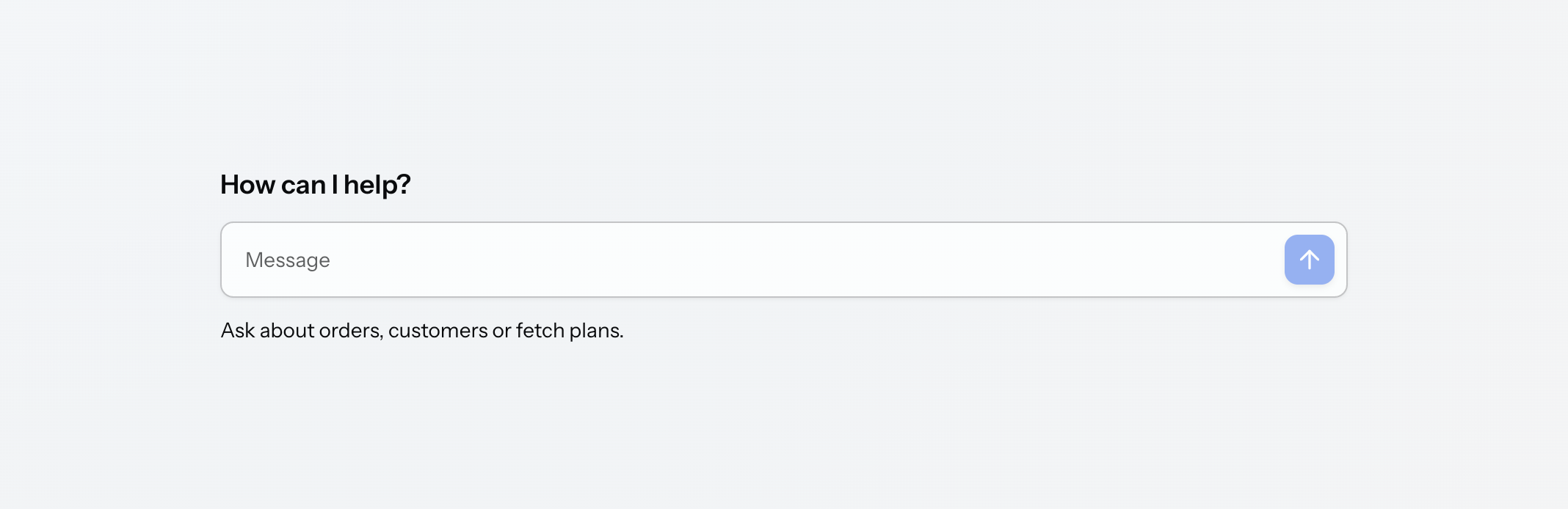
The empty state collapses into the normal bottom-pinned layout as soon as the first message lands.
Message Input Bands
inputHeader and inputFooter put application content inside the message input but outside its box, such as a context line above the field or a disclaimer below it:
<aichat:inputHeader>
    <span id="contextSpan" text="msg://contextSpan.text"/>
</aichat:inputHeader>
<aichat:inputFooter>
    <span text="msg://disclaimer.text"/>
</aichat:inputFooter>com.company.demo.view.chat/disclaimer.text=AI can make mistakes. Check important information.|
Both bands are hidden while the chat is empty, because the empty state has its own slots for that space. Send a message and the band appears. To keep a band visible when the chat is empty, apply the |
Generation
The chat moves between three states (idle, generating, and error) and reports every transition:
@Subscribe("chat")
public void onChatGenerationStateChange(
        final GenerationStateChangeEvent<SimpleAiChatMessage> event) {
    stateSpan.setText(event.getNewState().name());
    stopButton.setEnabled(event.getNewState() == GenerationState.GENERATING);
}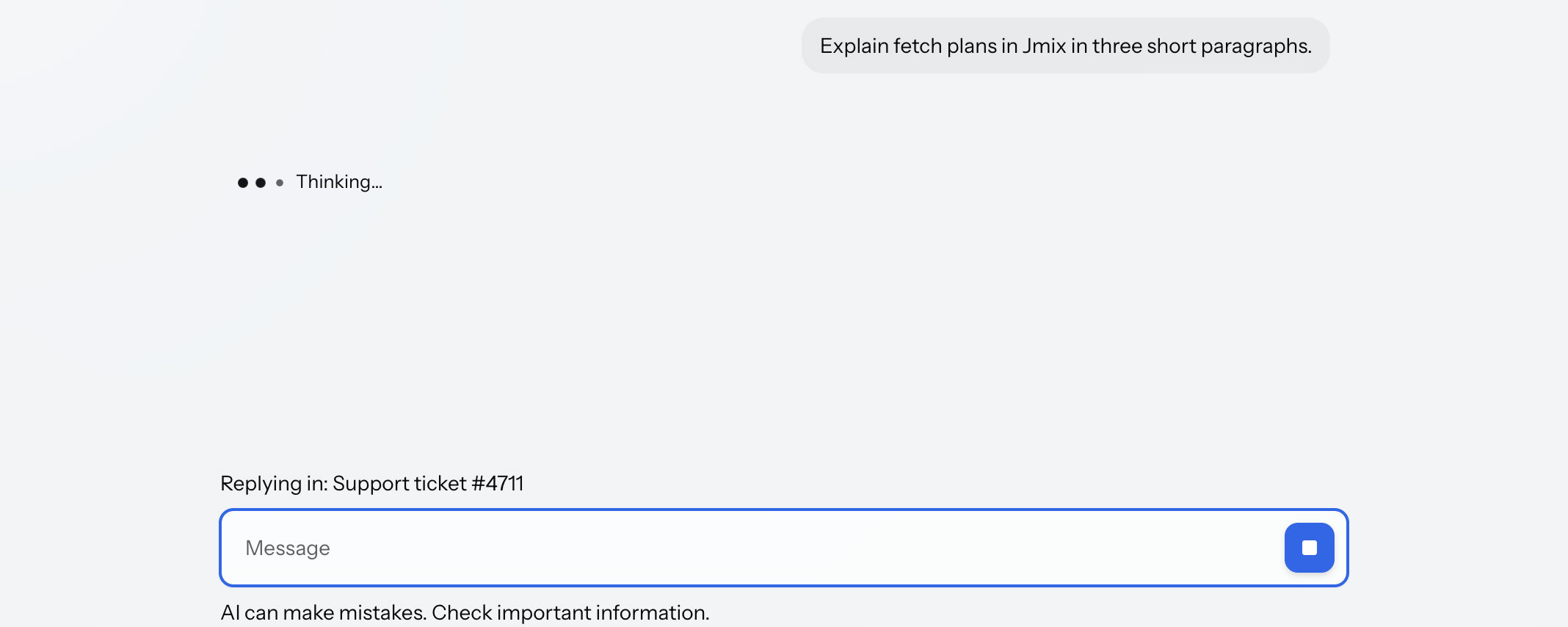
Stopping and regenerating need no code to be available to the user: while an answer is generating the message input’s send button becomes a stop button, and a Retry button appears on the error banner. The partial answer of a stopped generation stays on screen and is never committed.
The same operations are available from the application, for a chat that offers them somewhere else as well, such as a toolbar above the conversation, a menu, or a shortcut. The example below wires two such buttons; none of it is needed for the built-in affordances to work:
@Subscribe("stopButton")
public void onStopButtonClick(final ClickEvent<JmixButton> event) {
    chat.stop();
}

@Subscribe("regenerateButton")
public void onRegenerateButtonClick(final ClickEvent<JmixButton> event) {
    chat.regenerate();
}
To let the user regenerate any answer rather than only the last, declare the built-in message action. It rewinds the conversation to that message and runs it again:
<aichat:assistantActions>
    <aichat:action id="assistantRegenerate"
                   type="aichat_messageRegenerate"/>
</aichat:assistantActions>
When generation fails, the message list shows an error banner with a Retry button, and the application is notified with the error and whatever text had arrived before it:
@Subscribe("chat")
public void onChatGenerationFailed(
        final GenerationFailedEvent<SimpleAiChatMessage> event) {
    notifications.show(messageBundle.formatMessage("generationFailed.notification",
            event.getError().getMessage()));
}| A failed save and a failed generation share the error state, and Retry generates the answer again rather than retrying the save. |
Chat Actions
The chat holds ordinary Jmix actions, which can be bound to any component in the view:
<aichat:actions>
    <aichat:action id="clearAction"
                   text="msg://clearAction.text"
                   icon="TRASH"/>
</aichat:actions><button id="clearButton" action="chat.clearAction"/>These are the chat’s own actions, not the per-message actions described in Message Actions.
Configuring the Parts
Everything the message list and the message input offer is reachable from the chat. The maxRows, enterAction, and attachment attributes configure the message input; announceMessages configures the message list; the thinkingIndicator, thinkingStages, userActions, and assistantActions elements are declared on the chat and applied to the message list; and inputPrefix and inputSuffix fill the message input’s slots. See aiMessageList and aiMessageInput for what each does.
Styling
aiChat has no custom element of its own. It renders as a plain div containing the message list and the message input. It therefore exposes no shadow parts, and it cannot be selected by a tag name in CSS or found by one in the browser’s inspector. Style it through the class or id you give it, and address its parts through the components inside it:
<aichat:aiChat id="chat"
               classNames="branded-chat"
               themeNames="fixed-toolbar"
               width="100%"
height="100%"/>.branded-chat jmix-ai-message-input::part(input-container) {
border-radius: 0;
border-color: var(--vaadin-border-color-secondary);
}The following style properties can be used in CSS stylesheets to customize the appearance of this component.
| Name | Description |
|---|---|
|
Width of the conversation column. It is projected onto the message list and the message input, so it resizes the conversation, the input, and the empty state together. |
Everything else is styled on the components it composes. See aiMessageList, aiMessageInput, and aiCodeBlock.
Theme Variants
| Theme name | Effect |
|---|---|
|
Keeps the message input’s controls in a row of their own at all times. Projected onto the message input. |
|
Keeps the |
|
Keeps the |
|
Removes the gap between the bands and the input box. Projected onto the message input. |
Localization
The chat’s own announcements come from the add-on’s message bundle, under the aiChat.i18n.* keys. Its nested i18n element mirrors the component tree: attributes on the element itself re-word the chat, and nested messageList, messageInput, and codeBlock elements reach the parts it composes. See Localization.
Attachments
The chat threads attachments end to end: the message input collects them, the message factory stores them, and the message list renders them. See Attachments.
Attributes
The following attributes are specific to aiChat:
| Name | Description | Default |
|---|---|---|
Restricts attachments to the listed file extensions. See Attachments. |
— |
|
Restricts attachments to the listed media types. See Attachments. |
— |
|
Sets whether arriving messages are announced to screen readers. See Accessibility. |
|
|
Sets whether the message input accepts attachments. See Attachments. |
|
|
Persists committed messages through the view’s |
|
|
Binds the chat to a collection container of messages. See Messages and Data. |
— |
|
Sets what Enter does in the message input. See Text Area. |
|
|
Sets the maximum size of a single attachment in bytes. See Attachments. |
|
|
Sets how many files can be attached to one message. See Attachments. |
|
|
Sets how many lines the message input grows to before it scrolls. See Text Area. |
|
|
Sets the system prompt sent with every request. Can also be declared as a nested element for a multi-line value. |
— |
|
Applies theme variants, including |
— |
|
Sets whether files can be dropped onto the message input. See Attachments. |
|
The following shared attributes are supported by aiChat:
Handlers
The following handlers are specific to aiChat:
| Name | Description |
|---|---|
Fired when the user clicks an attachment in a message. See Downloading from the Conversation. |
|
Fired when a file is refused by one of the attachment limits. See Rejected Files. |
|
Fired when generation fails. Carries the error and the text received before it. See Generation. |
|
Fired on every transition between idle, generating, and error. See Generation. |
|
Fired when a message is committed or removed. See Persistence. |
|
Supplies the answer for a request, as a stream of text. Required. See Basics. |
|
Creates a message instance for the bound source. Required when the chat is bound to your own entity. See Messages and Data. |
|
Deletes a message that a rewind has dropped from the conversation. See Persistence. |
|
Persists a committed message and returns the instance the chat should hold from then on. See Persistence. |
The following shared handlers are supported by aiChat:
Elements
An aiChat can include actions, systemPrompt, inputPrefix, inputSuffix, inputHeader, inputFooter, thinkingIndicator, thinkingStages, userActions, assistantActions, emptyStateHeader, emptyStateFooter, and i18n as its nested elements.
actions
The actions element contains the chat’s own action elements. See Chat Actions.
systemPrompt
The systemPrompt element holds a multi-line system prompt, as an alternative to the attribute of the same name.
inputPrefix, inputSuffix, inputHeader, inputFooter
These elements fill the message input’s slots: the first two inside its box, the last two as bands outside it. See Message Input Bands and Prefix and Suffix.
emptyStateHeader, emptyStateFooter
These elements hold the content shown above and below the message input while the chat is empty. See Empty State.
thinkingIndicator, thinkingStages, userActions, assistantActions
These elements configure the message list and behave as described for aiMessageList.
i18n
The i18n element re-words this chat and, through its nested messageList, messageInput, and codeBlock elements, the parts it composes. See Localization.