Styling
Styling Point Features
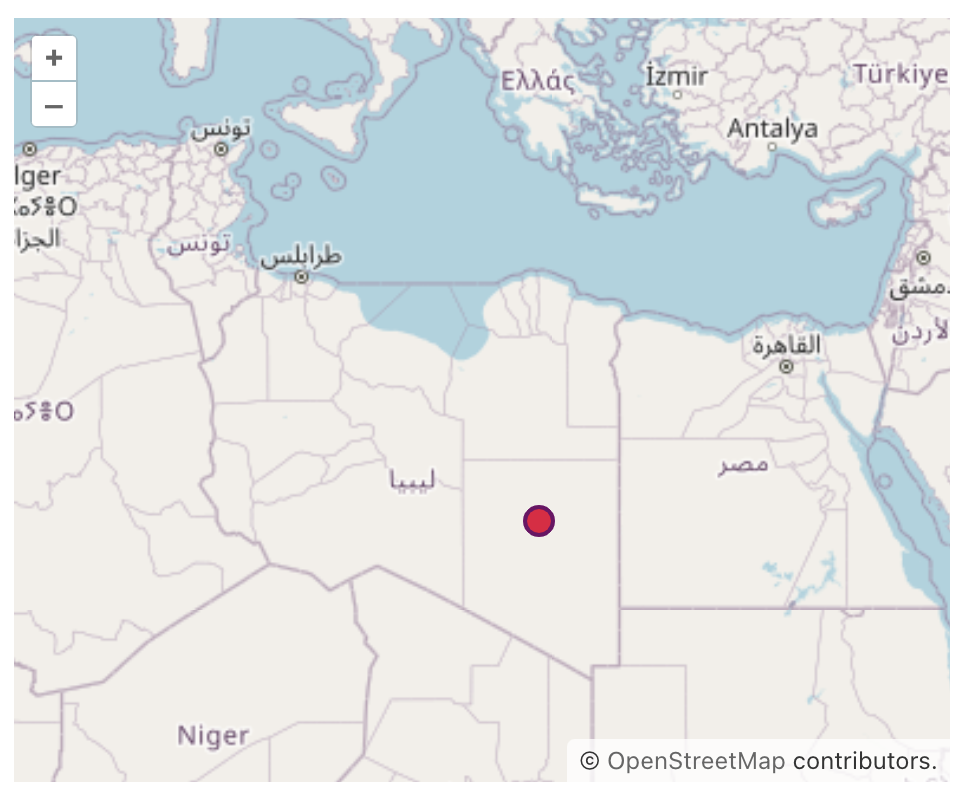
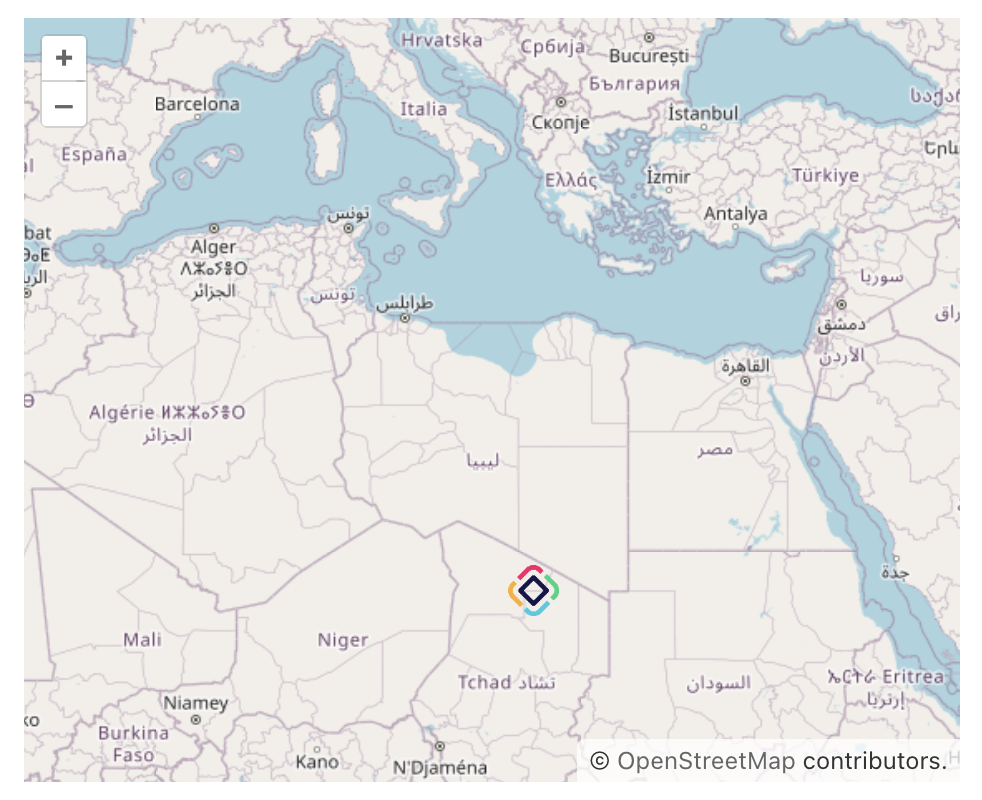
You can customize the appearance of a PointFeature by defining a PointStyle object with properties like image, fill, stroke, and text, then applying it to the feature.
Basic Point Style with Image
private PointFeature createStyledPoint() {
    return new PointFeature(GeometryUtils.createPoint(22, 25))
            .withStyles(
                    new PointStyle()
                            .withImage(new CircleStyle()
                                    .withRadius(7)
                                    .withFill(new Fill("#E7003E"))
                                    .withStroke(new Stroke()
                                            .withWidth(2.0)
                                            .withColor("#710067")))
                            .build());
}
Text Labels for Points
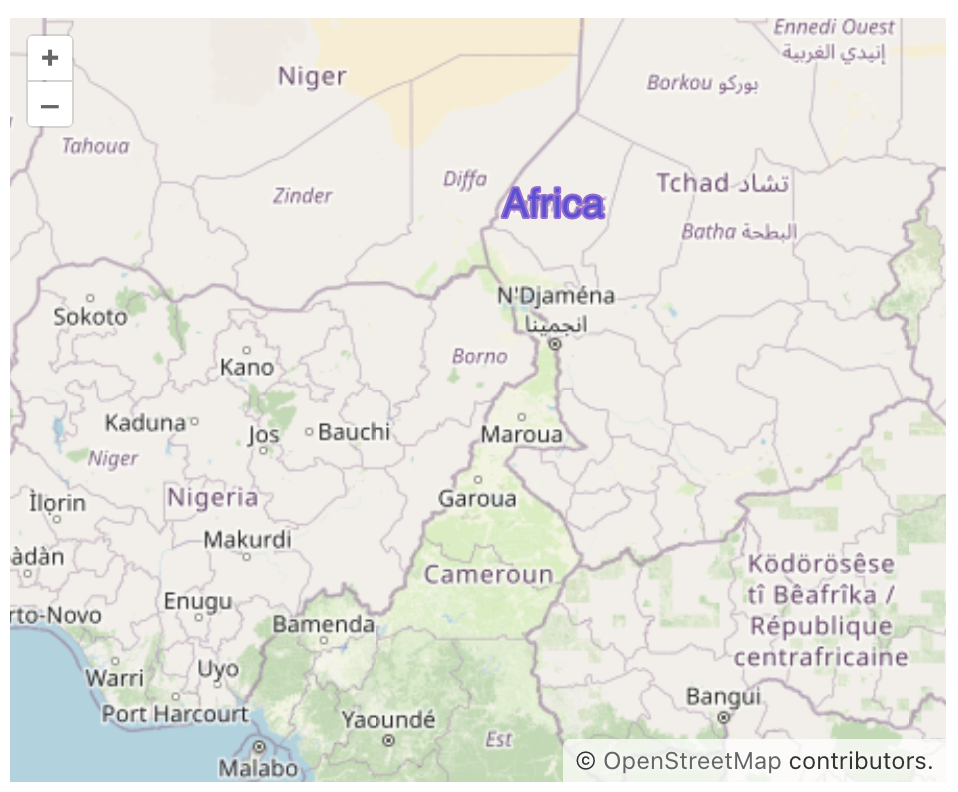
Using text instead of an image for the PointFeature allows you to display textual labels directly on the map at specified coordinates, providing clarity and context to the displayed data.
When utilizing text for PointFeature, you can customize the appearance of the text by adjusting properties like font, fill, textAlign, etc.
The example below demonstrates using a text label instead of an image for the PointFeature:
private PointFeature createTextPoint() {
    return new PointFeature(GeometryUtils.createPoint(15, 15))
            .withStyles(
                    new PointStyle()
                            .withText(new TextStyle()
                                    .withText("Africa")
                                    .withFont("20px sans-serif")
                                    .withFill(new Fill("#5E4BD8"))
                                    .withStroke(new Stroke()
                                            .withWidth(2.)
                                            .withColor("#A368D5")))
                            .build());
}
Using Icons for Points
-
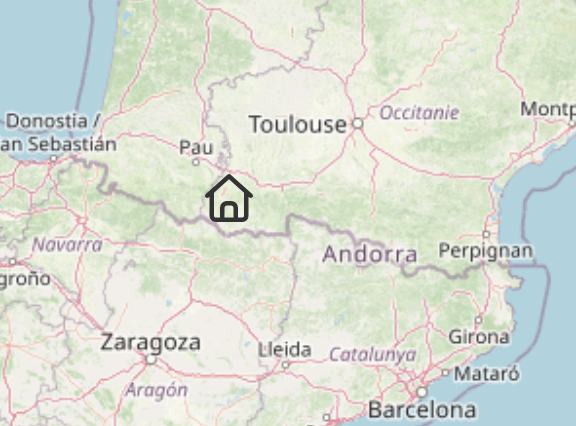
Font Icons
Example using Font Awesome 7 Free icons:
private PointFeature createPointWithFontIcons() {
    return new PointFeature(GeometryUtils.createPoint(0, 43))
            .withStyles(new Style()
                    .withText(new TextStyle()
                            .withText("\uf015")
                            .withFont("24px 'Font Awesome 7 Free'")));
}
To use icon fonts, like Font Awesome, you must include them in your project. -
SVG Icons
The
IconStyleclass provides several methods for setting icons on points.-
The
withVaadinIcon()method accepts anyVaadinIconenum value.private PointFeature createPointWithVaadinIcons() { return new PointFeature(GeometryUtils.createPoint(11, 45)) .withStyles(new Style() .withImage(new IconStyle() .withVaadinIcon(VaadinIcon.USER) .withColor("#1B1BB3") )); }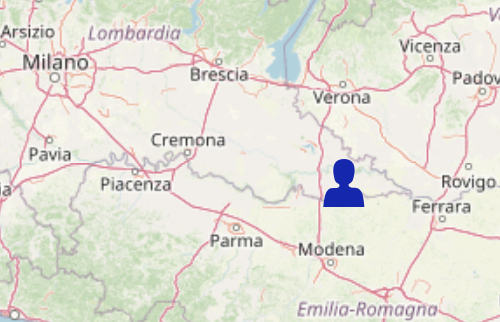
-
withLumoIcon()- sets icon from the Lumo icon set. You can adjust the size and color.private PointFeature createPointWithLumoIcons() { return new PointFeature(GeometryUtils.createPoint(12, 47)) .withStyles(new Style() .withImage(new IconStyle() .withLumoIcon(LumoIcon.SEARCH) .withIconHeight("32px") .withIconWidth("32px") .withColor("#621448")) ); }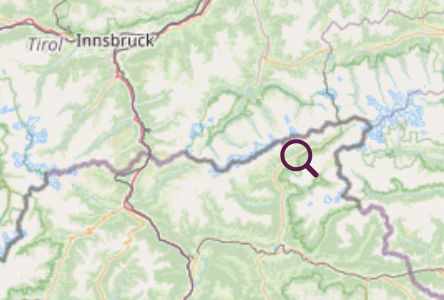
-
withIconFromSet()- uses icons from your own icon sets (see Custom Icons). The icon’s predefined color may affect the final appearance.private PointFeature createCustomPoint() { return new PointFeature(GeometryUtils.createPoint(4, 33)) .withStyles(new Style() .withImage(new IconStyle() .withIconFromSet(StarIcons.CIRCLE)) ); }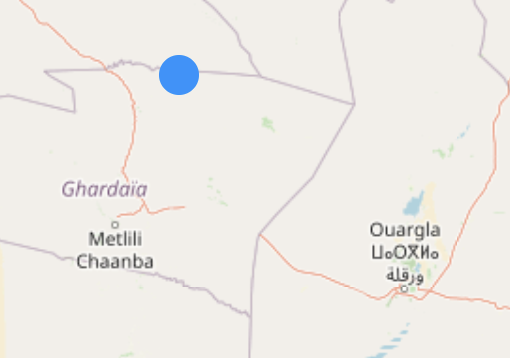
Icons from custom sets have predefined colors (fill=
"#1E90FF"). If you also callwithColor("…"), OpenLayers will combine both colors. For instance:.withStyles(new Style() .withImage(new IconStyle() .withIconFromSet(StarIcons.CIRCLE) .withColor("yellow")) ); }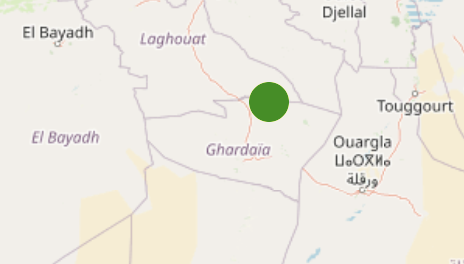
To color exclusively via Java API, set your icon’s fill to
"#FFF"(white). -
withIconName()- sets icon from icon set with the following format:"collectionName:iconName".private PointFeature createPointWithIconName() { return new PointFeature(GeometryUtils.createPoint(0, 30)) .withStyles(new Style() .withImage(new IconStyle() .withIconName("vaadin:user"))); }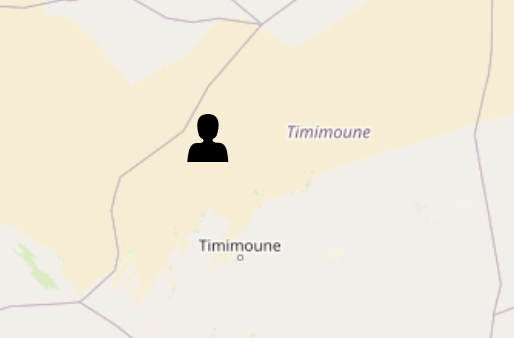
-
Styling Marker Features
To change the marker icon, refer to the following example:
private MarkerFeature createStyledMarker() {
    MarkerFeature feature = new MarkerFeature(GeometryUtils.createPoint(20, 20));
    feature.removeAllStyles();
    return feature.withStyles(new Style()
                    .withImage(new IconStyle()
                            .withSrc("icons/icon.png")
                            .withScale(0.05)));
}
Additionally, an example of customizing marker icons based on the geo-object’s attributes is provided in the Use Custom Markers section.
You can also apply the examples from Using Icons for Points to set icons as markers for a MarkerFeature.
|
Styling LineString Features
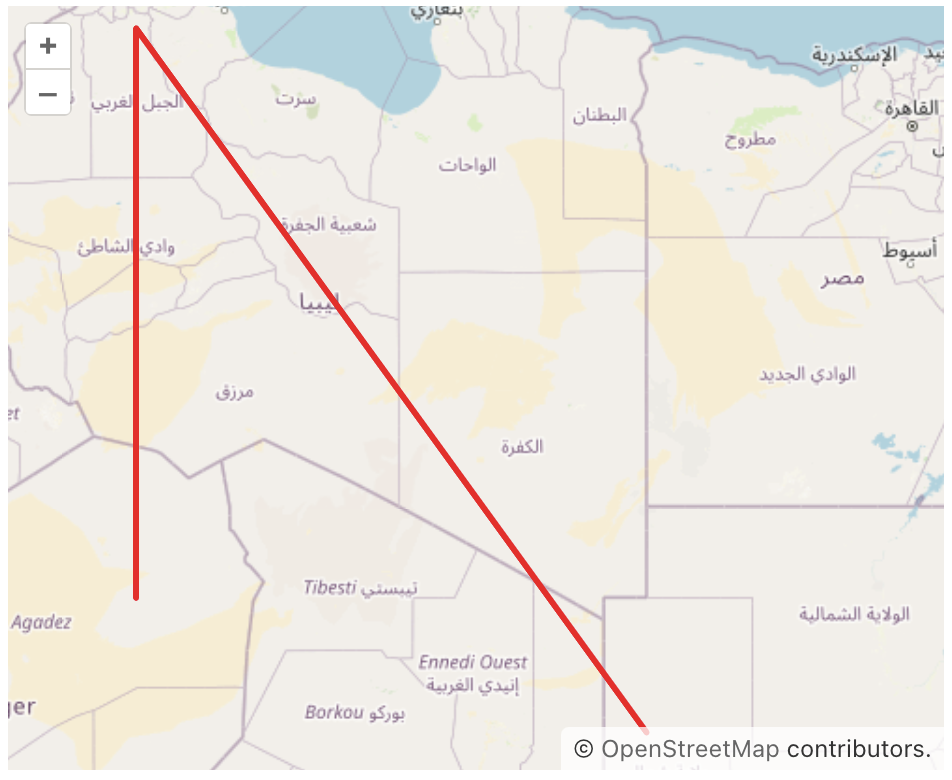
To change the style for a LineStringFeature, you typically define a LineStringStyle object with the desired appearance properties like stroke, fill, etc., and then apply that style to the LineStringFeature.
private LineStringFeature createStyledLineString() {
    LineString lineString = geometries.createLineString(new Coordinate[]{
            new Coordinate(13, 20),
            new Coordinate(13, 32),
            new Coordinate(25, 17)});
    return new LineStringFeature(lineString)
            .withStyles(
                    new LineStringStyle()
                            .withStroke(new Stroke()
                                    .withWidth(3.)
                                    .withColor("#F60018"))
                            .build());
}
Styling Polygon Features
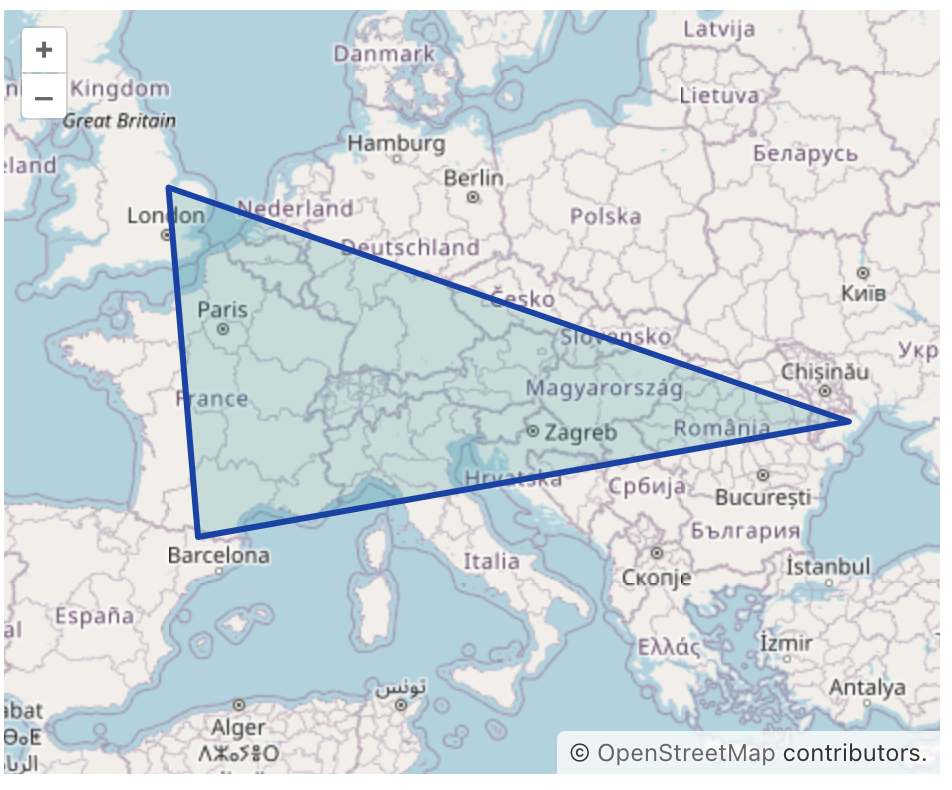
Changing the style for a PolygonFeature involves defining a new PolygonStyle with desired properties like fill, stroke, etc., and applying this style to the PolygonFeature.
private PolygonFeature createStyledPolygon() {
    LinearRing shell = geometries.createLinearRing(new Coordinate[]{
            new Coordinate(1.2457020544488762, 42.476628901048684),
            new Coordinate(-0.054875980233204155, 52.77260344863316),
            new Coordinate(29.858418817454655, 46.105591288830624),
            new Coordinate(1.2457020544488762, 42.476628901048684),
    });
    return new PolygonFeature(geometries.createPolygon(shell))
            .withStyles(
                    new PolygonStyle()
                            .withFill(new Fill("rgba(1, 147, 154, 0.2)"))
                            .withStroke(new Stroke()
                                    .withWidth(3.)
                                    .withColor("#123EAB"))
                            .build());
}
Selecting Mode Styles
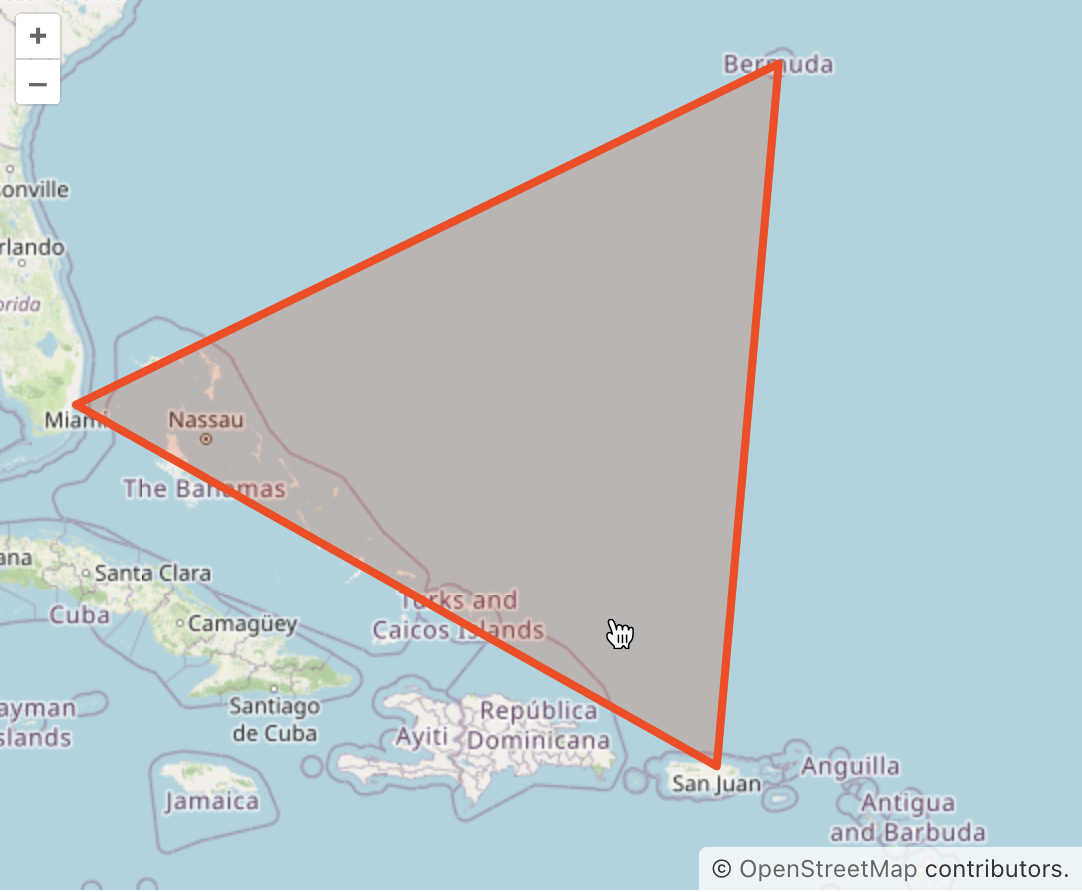
Every feature type in the vector source has default styles for the select mode. These styles are automatically applied when a user selects a feature on the map. To customize the selection styles, each feature provides methods for adding your own styles.
For instance, here’s how you can add custom selection styles to a PolygonFeature:
private PolygonFeature createPolygonWithSelectStyles() {
    Polygon polygon = GeometryUtils.createPolygon(new Coordinate[]{
            new Coordinate(-64.75370117729211, 32.30679527567045),
            new Coordinate(-80.18546220891433, 25.760830653727623),
            new Coordinate(-80.18546220891433, 25.760830653727623),
            new Coordinate(-66.11846996297967, 18.4077981563645),
            new Coordinate(-64.75370117729211, 32.30679527567045),
    });
    return new PolygonFeature(polygon)
            .withSelectStyles(
                    new PolygonStyle()
                            .withFill(new Fill("rgba(255, 61, 0, 0.2)"))
                            .withStroke(new Stroke()
                                    .withWidth(4d)
                                    .withColor("#FF3D00"))
                            .build());
}
| To apply the same selection style to all features in the source, set the select styles on the vector layer. |
Modifying Mode Styles
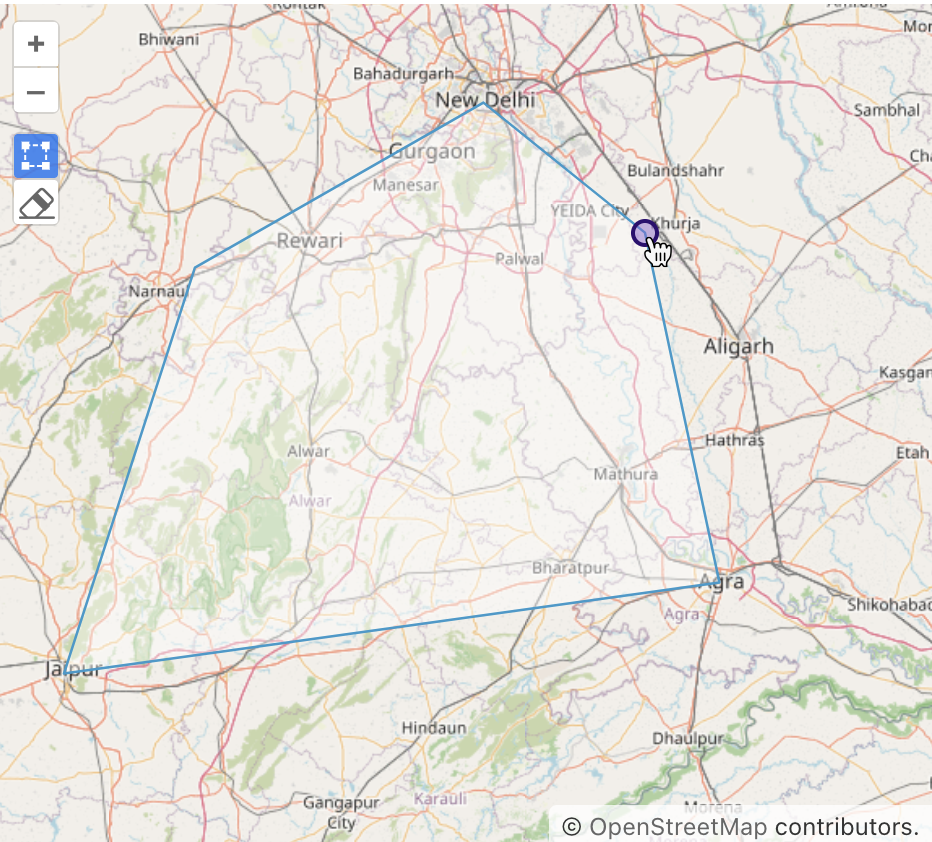
Vector sources provide the modify mode. When activated, this mode generates points at the geometry’s vertices, allowing for modifications such as adding new vertices and changing existing vertex positions. This mode also defines the styles for these generated vertices, which are displayed on the map to represent the geometry.
For example, here’s how to set custom styles for polygon vertex points:
private PolygonFeature createPolygonWithModifyStyles() {
    Polygon polygon = GeometryUtils.createPolygon(new Coordinate[]{
            new Coordinate(77.2048761253423, 28.605384389707353),
            new Coordinate(75.78484389126132, 26.895539146773086),
            new Coordinate(78.00224596797739, 27.170451672755192),
            new Coordinate(77.2048761253423, 28.605384389707353)});

    return new PolygonFeature(polygon)
            .withModifyStyles(
                    new PointStyle()
                    .withImage(new CircleStyle()
                            .withRadius(6)
                            .withFill(new Fill("rgba(149, 107, 214, 0.5)"))
                            .withStroke(new Stroke()
                                    .withWidth(2d)
                                    .withColor("#2F0571")))
                    .build());
}
| To apply the same modify styles to all features in the source, set the modify styles on the vector layer. |