Data Model
The Data model view (Data tools → Data model) displays entities and their attributes in the running application.
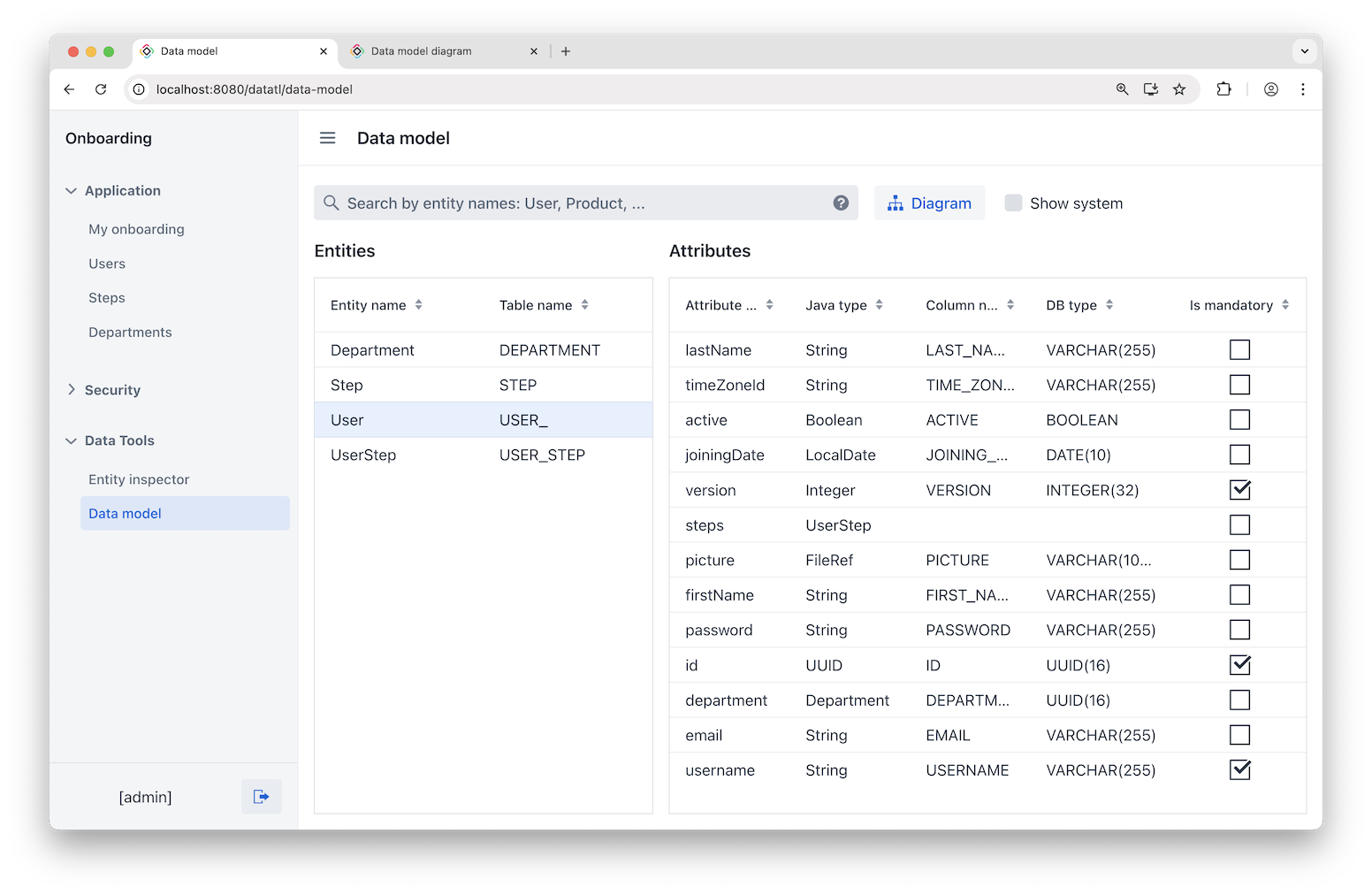
The Entities grid shows each entity’s name and its corresponding database table name. Selecting an entity updates the Attributes grid to list that entity’s attributes, including attribute name, Java type, database column name, database type, and the "is mandatory" flag.
Searching Entities
Use the Show system checkbox to include both project entities and internal Jmix entities from add-ons. To search for specific entities, enter their names separated by commas, such as Customer, Order, User, or use a regular expression. The Entities grid updates to display matching results.
PlantUML Diagram
Click Diagram to open a new browser tab with a PlantUML diagram that includes entities currently filtered in the view. By default, the diagram is rendered using a public PlantUML server at https://www.plantuml.com. You can render it on a self-hosted server instead.
Using a Self-Hosted Server
The diagram is requested from {host}/{path}/png/<encoded diagram>. To render the diagram on your own PlantUML server, set its host and path with the following application properties.
jmix.datatools.data-model-diagram.host-
The address of the PlantUML server. When it is set, the public server is not used.
jmix.datatools.data-model-diagram.path-
Since Jmix 3.1
The path under which the PlantUML server is available. Set an empty value if the server is available at the host address without a path, or if the host already includes the path.
Default value:
plantuml
Disabling the Public Server
Rendering the diagram on the public PlantUML server sends your application’s entity schema to an external service. To prevent this, set the jmix.datatools.data-model-diagram.public-server-enabled application property to false:
jmix.datatools.data-model-diagram.public-server-enabled=false
When no private host is configured via jmix.datatools.data-model-diagram.host, the public server is used only if both this property and the global jmix.core.unsafe-runtime-features-enabled switch are enabled. A configured private host always works regardless of these toggles. If no host is set and the public server is not allowed, the Diagram button is hidden.
Default value: true