Message Templates
In the Message Templates view, users can create, edit, and remove message templates.
When you click Create, the Message Template view opens. It contains the Template Details and Parameters tabs.
Template Details
The Template Details tab contains a panel for template attributes and an HTML editor for the template layout and content.
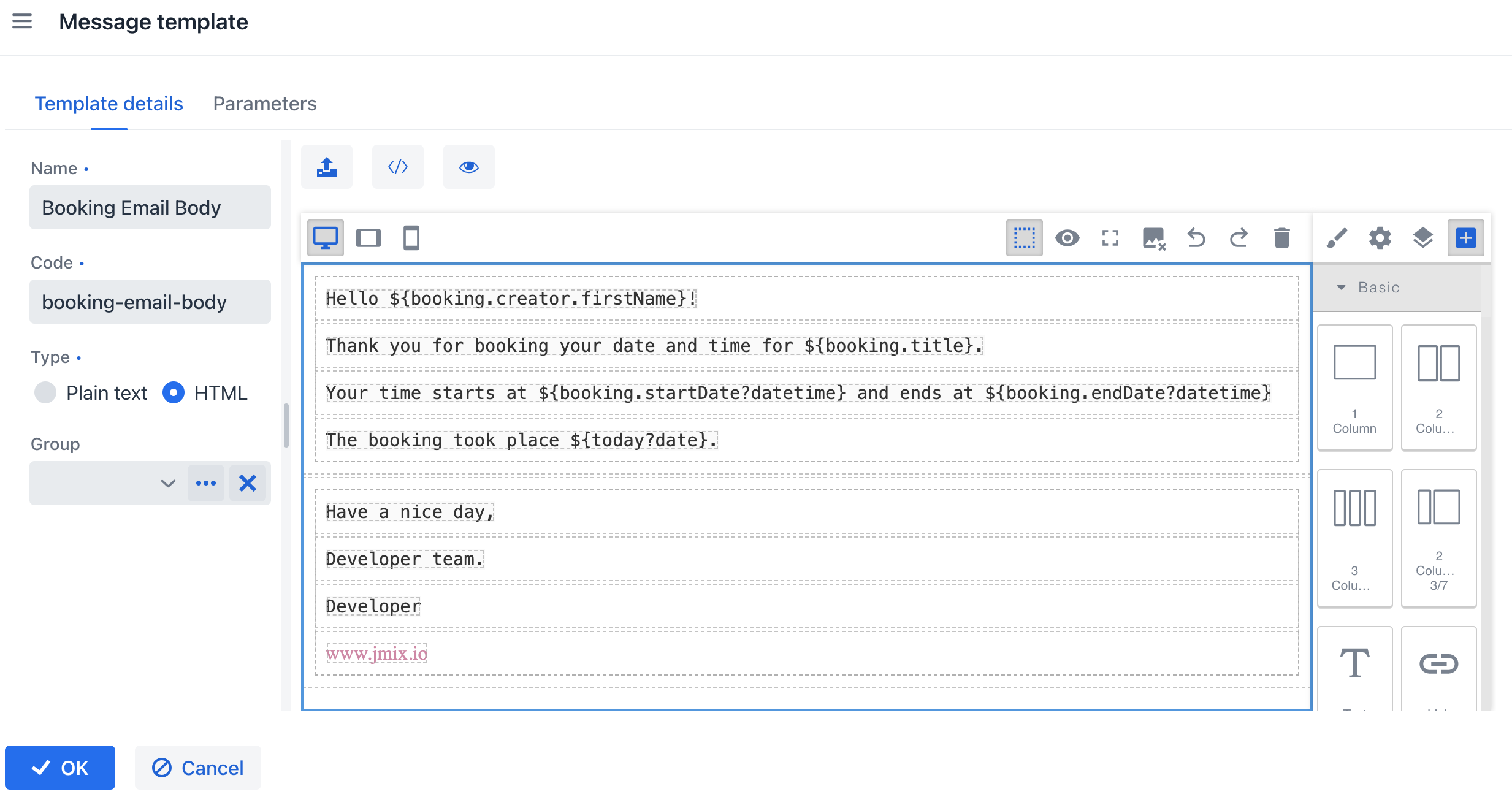
Template Attributes
To define a template, specify the following attributes:
-
Name: A descriptive template name. Required.
-
Code: A unique template identifier. Required.
-
Type:
Plain TextorHTML. -
Group (optional): A template group. Groups are configured in the Template groups view.
Designing the Template
In the HTML editor, you can build the template by using elements such as text, images, and buttons. Use the editor panels to change element properties.
Use placeholders in the template text to insert dynamic data.
For more information about the editor, see the GrapesJS documentation.
Placeholders
Placeholders are variables in a message template that are replaced with actual values at runtime. They use FreeMarker interpolation syntax, for example ${variableName}.
Values for placeholders can come from parameters defined in the template or from parameters passed from application code.
FreeMarker also provides built-in functions for formatting and processing values. For example, ${date?string["MM/dd/yyyy"]} formats a date as MM/dd/yyyy.
For more information, see the FreeMarker documentation.
Template Editor Tools
The button panel at the top of the HTML editor provides the following tools:
-
Import HTML: Upload existing HTML into the template.
-
Export HTML: Download the current template content as an HTML file.
-
View Source Code: Show the HTML source code for editing or review.
Previewing a Template
You can preview a message template from the editor or from the Message templates list view. If the template defines parameters, the parameter input dialog opens first, and then the rendered result is shown in the preview window.
Parameters
Create and configure template parameters in the Parameters tab.
Parameter Details
In the Parameter details tab, configure the following properties for each parameter:
-
Name: The parameter name shown in the input form.
-
Alias: A unique identifier used in the template and in code.
-
Type: The parameter data type. Supported types include
String,Number,Boolean,Date,Time,Date and Time,Enumeration,Entity, andList of Entities. -
Hidden: Hides the parameter in the input form.
-
Required: Makes the parameter mandatory.
-
Default Value: The value used when no other value is provided.
Parameter Types and Additional Fields
Some parameter types require additional fields:
-
Entity or List of Entities:
-
Entity: The entity used for the parameter. Required for
EntityandList of Entities.
-
-
Enumeration:
-
Enumeration: The enumeration used for the parameter. Required for
Enumeration.
-
-
Date, Time, or Date and Time:
-
Default date/time is current: Uses the current date, time, or date-time value by default.
-
