Value Formats
Value Formats Tab
You can specify the formatting for any field output by the report in the Value formats tab of the runtime report editor. Below is the form to add a format:
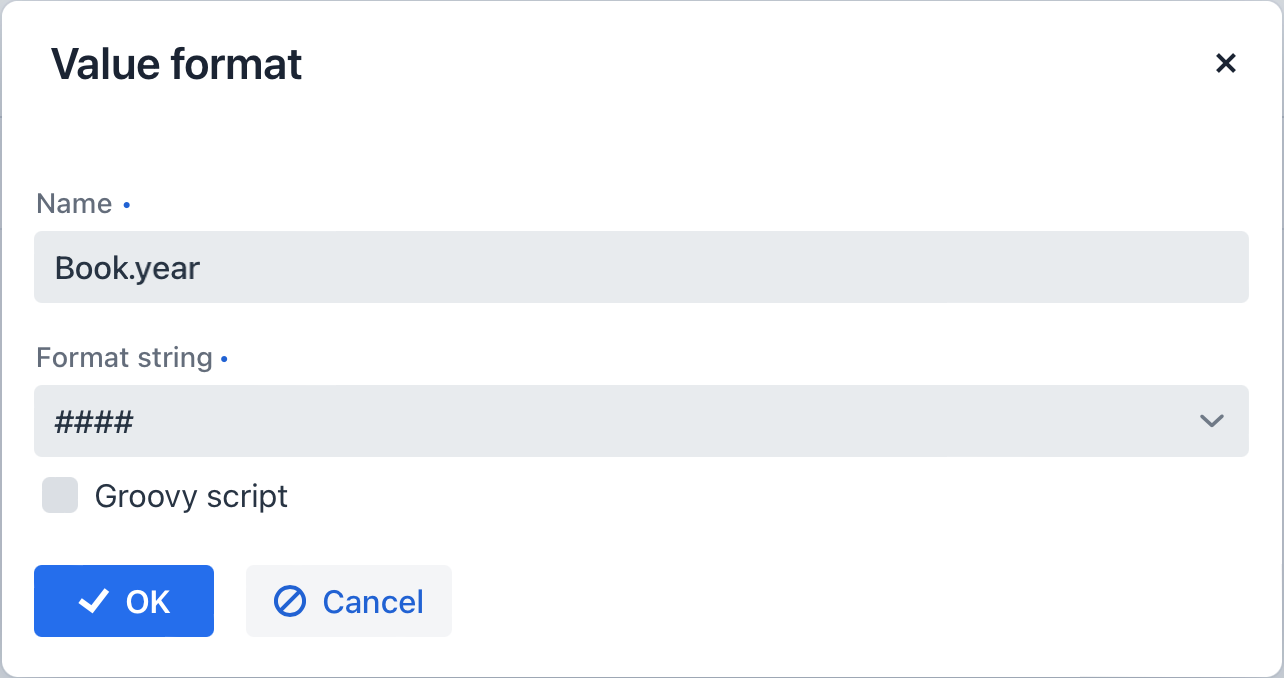
-
Name - report field name with the band prefix, for example,
Book.year. -
Format string - field format. For number values, specify the format according to the
java.text.DecimalFormatrules; for dates, usejava.text.SimpleDateFormat. -
Groovy script checkbox - allows specifying a Groovy script to format the field value. Using the
valuealias, the current field value is passed to the script, which can be formatted or converted to the desired format. A Groovy script should return the new value as a string.With Groovy scripting, you can create a formatter that handles enumeration-type attributes in Jmix reports. This formatter will convert the enumeration’s ID into localized text using the Messages bean.
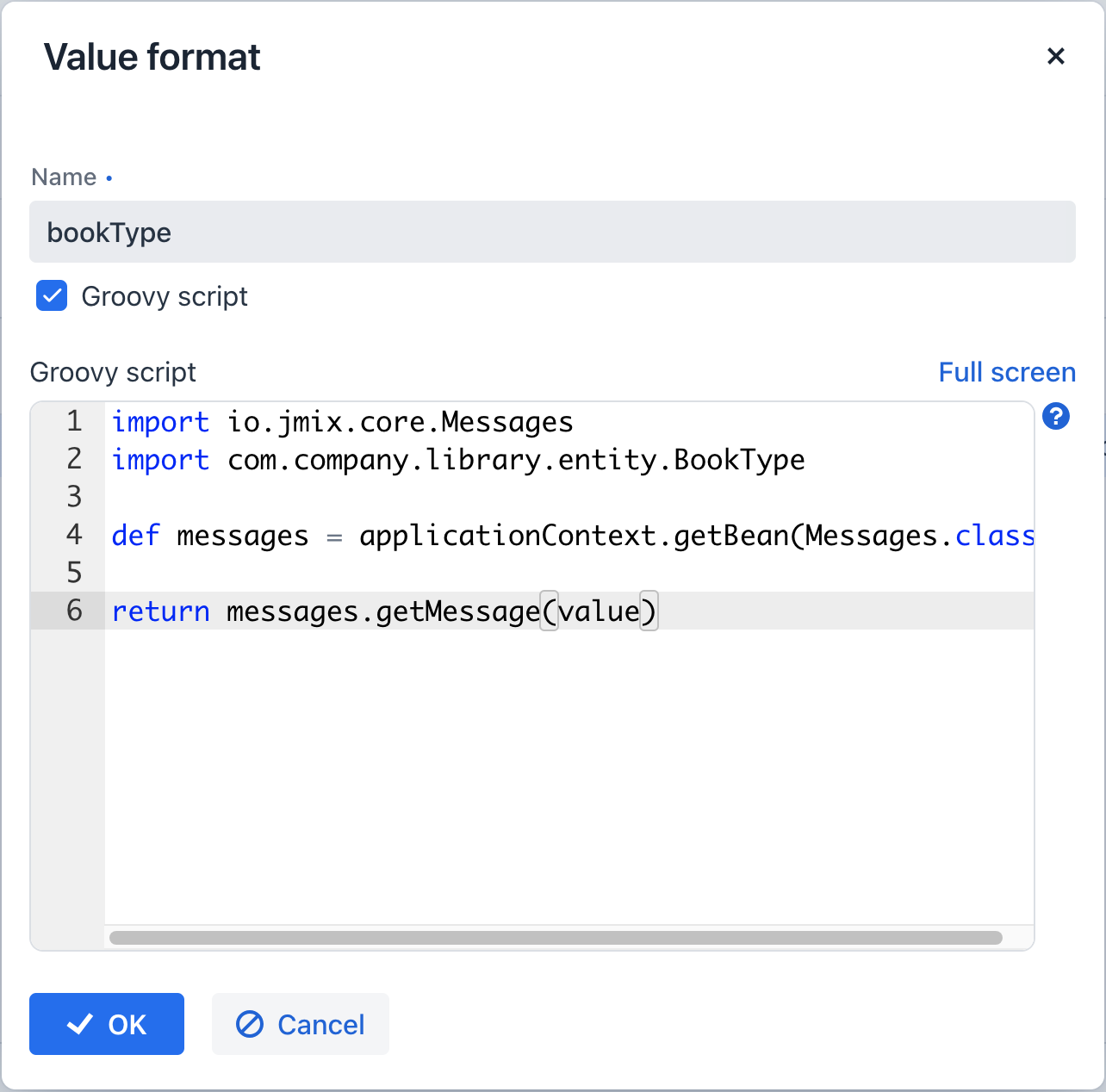
To access Spring-managed beans, use the
ApplicationContextobject (org.springframework.context.ApplicationContext).
With the help of formats, it is possible to insert images and HTML blocks into the document.
-
In order to insert an image, specify the image URL as the field value, and the format string must be as follows:
${image:<Width>x<Height>}, for example,${image:200x300}.To work with the
FileRef, use the${imageFileId:WxH}value formatter that accepts aFileRefinstance or a URI of a file as a string. -
In order to insert an HTML block, you should return an HTML markup in the field, and select
${html}as the format string. In the output value, you may omit top-level tags up to<body>inclusive. If necessary, all missing top-level tags will be added automatically. All blocks should be encoded withUTF-8. CSS and thestyleattribute are not supported.
You can specify your own custom formats as well. To do this, type the new value in the field without opening the dropdown and press Enter. You can also choose any format from the dropdown, edit its name in the field, and press Enter. The custom format will be saved in both cases.
@ValueFormatDef Annotation
The @ValueFormatDef annotation defines a value format, which is an element of the report structure when creating a report at design time. Value formats fine-tune the output formatting for any field generated by the report.
You can apply this annotation multiple times on a report class if it contains several value formats. To implement additional logic, create a method annotated with @ValueFormatDelegate.
The @ValueFormatDef annotation has the following attributes:
-
band- name of the report band containing the field. -
field- name of the field to be formatted. -
format- field format.-
For numeric values, specify the format according to
java.text.DecimalFormatrules. -
For dates, use
java.text.SimpleDateFormat. -
Built-in formats are also available for inserting images, HTML blocks, and more. Refer to the documentation for details.
-
@ValueFormatDelegate Annotation
The @ValueFormatDelegate annotation marks a delegate method that implements logic related to a value format defined in the report definition class.
Requirements:
-
The method must have no parameters.
-
The method must return one of the supported functional interfaces.
Supported interfaces:
-
CustomValueFormatter- custom formatter implementation.
@ValueFormatDelegate has the following attributes:
-
band- corresponds to thebandattribute of the value format definition. -
field- corresponds to thefieldattribute of the value format definition.