Bands and Datasets
The internal report structure is composed of bands. A band represents a section of the report that may appear zero or more times in the final document.
A band is populated with data provided by one or multiple datasets associated with the band.
In the report template, the bands are marked up in a way that depends on the file format. The report definition includes the hierarchical structure of bands, corresponding to the template bands.
The picture below shows an example of bands used in a report:

The Root band in the report definition is predefined, however, it may not be used in a template.
| You can find examples of various bands and datasets in the Report Generation guide. |
Bands
You can define bands at runtime on the Bands tab of the report detail view or at design time with the @BandDef annotation.
Bands Tab
The Bands tab of the runtime report editor allows you to define the band hierarchy and datasets for each band.
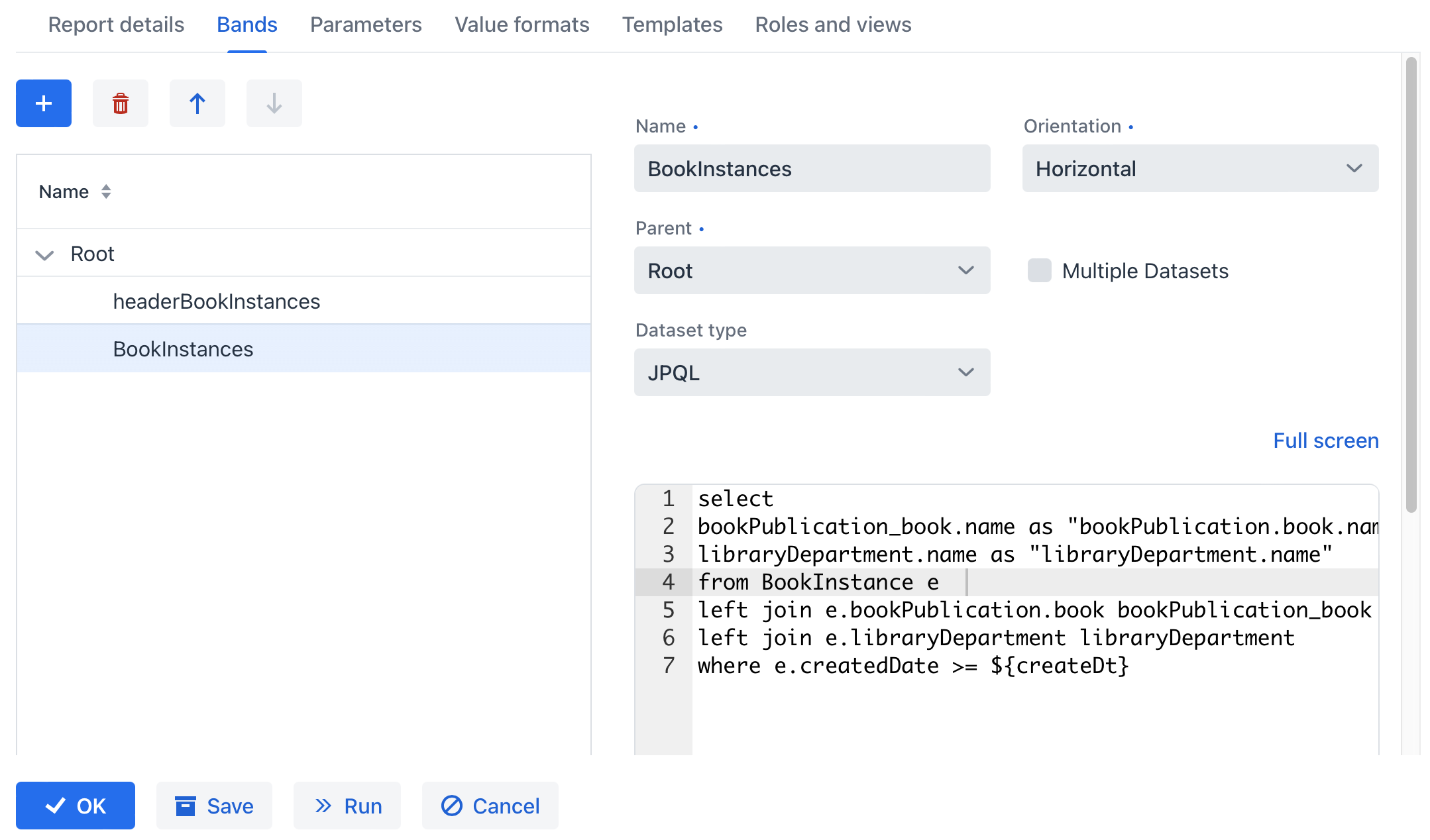
A report band has the following parameters:
-
Name — band name, unique within the report. It must contain only Latin letters, numbers, and underscores.
If the band name starts with header, its data will not be printed when using the table formatter. -
Orientation — band orientation: Horizontal, Vertical or Crosstab.
-
Horizontal bands are copied downwards. They may contain sub-bands.
-
Vertical bands are copied to the right.
-
Crosstab bands are copied to the right and downwards as a matrix.
-
-
Parent — parent band.
-
Multiple Datasets — select this checkbox if you want to define more than one dataset for the band.
-
Streaming — select this checkbox to make the band a streaming band.
-
Dataset type — the type of dataset.
Each band includes one or more datasets. When running a report, datasets are transformed into lists of rows, where each row contains a map of name-value pairs. A band appears in the report as many times as the number of rows in its longest dataset.
Fields defined in the report template are replaced with corresponding values from the dataset when the report is executed. When defining datasets, you can use report external parameters and fields from other bands, which lets you link bands.
Each report has the Root band. You can create datasets in it and refer to their fields from other bands.
Note that the Dataset name column, available when working with multiple datasets, is for user convenience only.
@BandDef Annotation
The @BandDef allows you to define bands when creating a report at design time. It has the following attributes:
-
name— band name, unique within the report. It must contain only Latin letters, numbers, and underscores. -
parent— name of the parent band. Can be omitted only for theRootband. -
root— must be set totrueonly for theRootband.falseby default. -
orientation— band’s orientation defined by theOrientationenum:HORIZONTAL,VERTICAL,CROSS. It’sHORIZONTALby default. -
streaming— iftrue, the band is a streaming band. It’sfalseby default. -
dataSets— datasets defined by the array of@DataSetDefannotations.
The report must include the definition of the Root band with name = "Root" and root = true attributes.
The order of @BandDef annotations in the report definition Java class is important. It affects the printing order of bands on the same level of the hierarchy.
|
Streaming Bands
Since Jmix 3.1
A streaming band reads its rows one by one from a database cursor and writes them to the XLSX document right away. The reporting engine keeps only the last rendered rows in memory and writes older rows to a temporary file. The data of other bands is loaded into memory as usual. To make a band streaming, select the Streaming checkbox on the Bands tab or set streaming = true in the @BandDef annotation.
A report with a streaming band must meet the following requirements:
The report detail view does not save a report definition that breaks these requirements. When the reporting engine renders the streaming band, it checks them and fails with an error that lists the unmet requirements.
Streaming works only with an .xlsx template that is not custom. With other templates, the reporting engine ignores the streaming setting, writes a warning to the log, and loads all data into memory. An .xlsx template must also follow the rules described in Templates with a Streaming Band.
The query of the streaming band runs in a separate read-only transaction that stays open while the band rows are written.
| To tune streaming, use the jmix.reports.streaming.fetch-size, jmix.reports.streaming.cursor-clear-interval, and jmix.reports.streaming.row-access-window-size application properties. |
Datasets
SQL Dataset
SQL dataset is produced as a result of SQL query execution. It is recommended to use aliases for query result fields using the as operator. It is also recommended to enclose the aliases in double quotes to prevent possible case conversion by the DBMS:
select u.name as "userName", u.login as "userLogin"
from user_ u
You can use report input parameters and parent bands fields in the query. Parameters should be addressed by name enclosed in ${}, for example, ${dateFrom}. Parent band fields should be addressed similarly, by adding the band name in front of the field name: ${band1.field1}.
Below is an example of an SQL query with a groupId parameter, obtained from the group parent band and an external enabled parameter:
select u.name as "userName", u.login as "userLogin"
from user_ u
where u.group_id = ${group.groupId}
    and u.active = ${active}
and u.deleted_date is null|
You should manually include conditions to filter soft deleted records for SQL queries. |
- Merge multiple datasets
-
The Link field is used to merge data from multiple datasets inside one band. It can be used when the whole data for the report row could not be received by a single query or a Groovy script.
- Selecting data store
-
By default, queries are executed on the main database. If you want to query an additional data store, set its name in the Data store field.
- Query preprocessing in bands
-
If you need to modify the SQL/JPQL query dynamically depending on the report input parameters or the parameter values from the parent band, you can use the SQL preprocessing. The template engine enables you to modify SQL/JPQL queries using Groovy. In order to activate it, check the Preprocess query as Groovy template checkbox below the band editor. The resulting query will be processed by
GStringTemplateEnginethat will have access to:-
the report parameters:
${<parameter_name>}, -
values from parent bands:
${<band_name>.<parameter_name>}.
Let’s consider the following example: depending on whether the
createTs2report parameter is passed you need to select one of the query conditions:e.create_ts < ${createTs2}ore.create_ts < current_timestamp.In this case, the query should look like this:
select e.create_ts, e.id, e.vin from ref_car e
where
e.create_ts >= ${createTs1}
and
<% out << (createTs2 != null  ? 'e.create_ts < ${createTs2}' : 'e.create_ts < current_timestamp')%>
Thus, if the
createTs2parameter is not passed, the initial query will be transformed into the following resulting query:select e.create_ts, e.id, e.vin from ref_car e where e.create_ts >= ${createTs1} and e.create_ts < current_timestampIf
createTs2is passed, the following resulting query will be used for the band:select e.create_ts, e.id, e.vin from ref_car e where e.create_ts >= ${createTs1} and e.create_ts < ${createTs2} -
JPQL Dataset
JPQL dataset is produced as a result of JPQL query execution. The resulting query fields must have aliases provided using the as operator. Similar to an SQL query, you can use report input parameters and parent band fields in the JPQL query.
Below is an example of a JPQL query with a groupId parameter, obtained from the group parent band and an external enabled parameter:
select u.name as userName, u.login as userLogin
from User u
where u.group.id = ${group.groupId}
    and u.active = ${active}
JPQL queries automatically support soft deletion and return only records that are not deleted.
|
When using a JPQL query as a data source for a report, please note that the query is executed directly against the database and bypasses DataManager. This means that the system’s regular data access security checks (row-level and resource) are not applied automatically. You must ensure that your JPQL queries only retrieve data that the user is authorized to access. It is your responsibility to implement any necessary security checks in your queries. |
You can also use Link field to merge multiple datasets, use Data store to query additional data store or activate query preprocessing by checking the Preprocess query as Groovy template checkbox below the band editor.
AI-generated JPQL Dataset
Since Jmix 3.1
AI-generated JPQL dataset is produced as a result of JPQL query execution. The query itself is generated by a Large Language Model (LLM) from your description in natural language. The query is stored with the dataset. When the report runs, the stored query is executed through DataManager, and the LLM is not called.
Requirements
The query is generated by the AI Tools add-on. The AI-generated JPQL dataset type is available in the report detail view if the add-on is installed in the application and its data load functionality is enabled. The Generate query button also requires a configured model. Without a model, you can edit a stored query only by hand.
The add-on is not required to run reports that contain such datasets, for example, after import.
Instead of the AI Tools add-on, you can generate queries with your own bean that implements the io.jmix.reports.llm.LlmDataQueryService interface.
|
Generating Query
The model reads the data model through the Data Load tools of the AI Tools add-on, so it sees only the entities that the add-on exposes to the current user. The add-on validates the generated query and asks the model to fix it if needed, as many times as the jmix.aitools.dataload.max-repair-attempts property allows.
To create a dataset of this type:
-
Select AI-generated JPQL in the Dataset type field.
-
In the Prompt field, describe the data the band needs, for example:
Orders placed since :dateFrom with the customer name and the order amount, wheredateFromis a report parameter. Refer to parameters by the names described in Parameters. -
Click Generate query. The maximum generation time is defined by the jmix.reports.client.llm-query-generation-timeout application property.
-
Check the query in the Generated query field and the band fields in the Columns list.
The Columns list contains the names you use for the band fields in the report template, for example, ${customerName}. The columns match the values of the select clause by position.
To change the query and the columns by hand, click the Edit button (pencil icon) next to the Generate query button. If you add, remove, or reorder values in the select clause, change the Columns list the same way. Otherwise, band fields get wrong values or stay empty. The view does not check this. Generating the query again replaces your changes.
Parameters
The query refers to values by JPQL named parameters:
-
Report input parameters are available by their aliases, for example,
:dateFrom. -
Fields of parent bands are available as
:<band>_<field>, for example,:Orders_customerIdfor thecustomerIdfield of theOrdersband. Fields of theRootband are not available.The model knows the fields of a parent band only if the parent band has an AI-generated JPQL dataset with a stored query. For other parent datasets, such as JPQL or SQL, name the parameters in the prompt.
Some parameters need special handling:
-
An empty optional parameter is passed as
null. To make such a condition work, the query must check the parameter, for example,(:customer is null or o.customer = :customer). The model is asked to add such checks. When you save the report definition, the view warns you about optional parameters that are compared without a check, because otherwise the band would be empty with no error. -
A parameter of the List of entities type is matched with
in. If such a parameter is empty, the report run fails with an error. -
The case-insensitive parameter syntax
:(?i)nameis not supported, and a report run fails with an error. Uselower(…) like :nameinstead.
If the prompt asks for a number of rows, for example, the top 5 customers by revenue, the limit is stored with the query. In a child band, the limit is applied for each row of the parent band.
In a cross-tab band, you can use an AI-generated JPQL dataset for the cells. The fields of the column header dataset (<band>_dynamic_header) and the row header dataset (<band>_master_data) are passed to the query as list parameters named :<dataset>_<field>, for example, :Sales_dynamic_header_month for the month field of the Sales_dynamic_header dataset. To let the reporting engine link each result row to a cell, the query must return a column with the same name for both the column headers and the row headers, for example, Sales_dynamic_header_month.
Differences from JPQL Dataset
The query syntax and behavior differ from the JPQL dataset:
| JPQL dataset | AI-generated JPQL dataset | |
|---|---|---|
Report parameter |
|
|
Parent band field |
|
|
Field names |
Aliases after |
The Columns list. Aliases stay in the query, so they cannot be in double quotes and cannot be JPQL reserved words, such as |
Query preprocessing |
Not supported |
|
Data store |
Set in the Data store field. The main data store is used by default. |
Determined from the query: the data store of the entity that the first value in |
Data access checks |
Not applied, because the query bypasses |
Applied, see Data Access Checks |
Data Access Checks
Unlike the JPQL dataset, an AI-generated JPQL dataset applies the data access checks of the current user:
-
The user must have the read permission for every entity that the query uses, including joined entities and subqueries. Otherwise, the report run fails with an access error.
-
Attributes that the user cannot read are returned as
null. -
The JPQL policies of all entities that the query reads are added to the query.
To keep these checks effective, a report run fails with an error if the stored query:
-
Is not a
selectquery, or uses theSQL,FUNCTION,FUNC,OPERATOR,COLUMN, orTABLEfunctions of EclipseLink. -
Selects whole entities, such as
select oorselect o.customer, instead of their attributes. -
Reads an entity that has a predicate policy for the
READoperation. Use a JPQL policy instead. -
Reads an entity with a row-level policy that cannot be applied to the query: the entity is used only in a subquery or under more than one alias, or its policy has a join clause and it is not the entity that the query selects from.
Limitations
-
A band with an AI-generated JPQL dataset cannot be a streaming band.
-
Reports created at design time cannot use this dataset type, because the query is generated in the report detail view and stored in the report definition.
Groovy Dataset
Groovy dataset is produced as a result of Groovy script execution. The script returns an object of the List<Map<String, Object>> type. Each element of this list - an object of the Map<String, Object> type - corresponds to one dataset record.
The following objects are passed into the script:
-
params- external report parameters map. Below is an example to get a parameter value:def active = params['active'] -
parentBand- parent band as an object of theio.jmix.reports.yarg.structure.BandDatatype. This object allows you to get a parent band field value by invoking thegetParameterValue()method, for example:def groupId = parentBand.getParameterValue('groupId') -
currentAuthentication- an object of theio.jmix.core.security.CurrentAuthenticationtype associated with the currently authenticated user. For example:def user = currentAuthentication.getUser() -
metadata- an object of theio.jmix.core.Metadatatype, providing access to the application metadata. For example:def metaClass = metadata.getClass('User') -
dataManager- an object of theio.jmix.core.DataManagertype that provides CRUD functionality. For example:def book = dataManager.load(Book.class).id(bookId).fetchPlan("book.edit").one() -
timeSource- an object of theio.jmix.core.TimeSourcetype used to obtain the current time. For example:def currentDate = timeSource.currentTimestamp() -
applicationContext- an object of theorg.springframework.context.ApplicationContexttype that provides access to managed beans. For example:def accountService = applicationContext.getBean(AccountService);
Entity Dataset
Entity dataset consists of a single row and is produced using attributes of a single JPA entity instance and the entities related to it.
The data source is produced from an external parameter of the Entity type, which must be described in the Parameters tab. The value in the Entity parameter name field must match the parameter name.
The report template must contain fields with entity attribute names. Attribute names can use names in the existing fetch plan by checking Use existing fetch plan or can be selected by the Select entity attributes button.
|
As the reporting engine always reloads entities in the Entity dataset from the database, you cannot use it for DTO entities or JPA entity instances not saved to the database. Instead, use the Groovy dataset and access the entity passed as a parameter in the following way: |
List of Entities Dataset
List of entities dataset is produced using a list of JPA entity instances.
The data source is produced using an external parameter being a List of entities, which must be described in the Parameters tab. The value in the List of entities parameter name field must match the parameter alias.
The report template must contain fields with entity attribute names. Attribute names can use names in the existing fetch plan by checking Use existing fetch plan or can be selected by the Select entity attributes button.
|
As the reporting engine always reloads entities in the List of entities dataset from the database, you cannot use it for DTO entities or JPA entity instances not saved to the database. Instead, use the Groovy dataset and access the list of entities passed as a parameter in the following way: |
JSON Dataset
JSON dataset is generated from JSON data. This data can be received from the following sources:
-
Groovy script
The script provided by the user is supposed to return JSON data as a string.
For example:
return ''' { "items": [ { "name": "Java Concurrency in practice", "price": 15000 }, { "name": "Clear code", "price": 13000 }, { "name": "Scala in action", "price": 12000 } ] } ''' -
URL
The report engine will perform a GET HTTP query against the URL.
For example:
https://jsonplaceholder.typicode.com/users -
Parameter
The report external parameter of String type which contains the JSON data must be described in the Parameters tab.
The received JSON tree is queried using the JsonPath query. For example, you can use the $.store.book[*] JsonPath to return all books from the following JSON tree:
{
    "store": {
    "book": [
            {
                "category": "reference",
                "author": "Nigel Rees",
                "title": "Sayings of the Century",
                "price": 8.95
            },
            {
                "category": "fiction",
                "author": "Evelyn Waugh",
                "title": "Sword of Honour",
                "price": 12.99,
                "isbn": "0-553-21311-3"
            }
    ],
    "bicycle": {
        "color": "red",
        "price": 19.95
    }
}
}
For more details on JsonPath expressions, see the documentation.
|
Fields output by the report that have To do this, switch to the Value formats tab of the report detail view and open the formatter dialog. For example, for the field |
@DataSetDef Annotation
The @DataSetDef annotation allows you to define datasets when creating a report at design time. It has the following attributes:
-
name— dataset name. It is used in datasets of theDELEGATEtype to link the dataset definition with the method that returns the delegate.In a cross-tab band (
@BandDef.orientation = Orientation.CROSS), the datasets must have the following names:-
Column headers:
${band_name}_dynamic_header -
Row headers:
${band_name}_master_data -
Main content:
${band_name}
-
-
type— dataset type defined by theDataSetTypeenum. Values of this enum correspond to the types of runtime datasets described above. TheLLMvalue (AI-generated JPQL dataset) cannot be used at design time.Usually, design-time reports use datasets of the
DELEGATEtype. In this case, they are linked by name with methods annotated with@DataSetDelegateannotation.
@DataSetDelegate Annotation
The @DataSetDelegate annotation allows you to define a method that returns a delegate for executing dataset logic. It has the name attribute, which should be equal to the name of the corresponding dataset.
The annotated method must not have any parameters and should return the ReportDataLoader functional interface.