Attachments
A message can carry files. The message input collects them, the application stores them, the message list renders them, and a click brings them back out of storage. Attachments span aiChat, aiMessageInput, and aiMessageList, so they are described here rather than on any one of those pages.
Enabling Attachments
Attachments are off by default. Turn them on and set the limits on the chat, or on the message input if you are using it standalone:
<aichat:aiChat id="chat"
               dataContainer="messagesDc"
               autoSave="true"
               width="100%"
               height="100%"
               attachmentsEnabled="true"
               maxFiles="3"
               maxFileSize="5242880"
               acceptedFileExtensions=".png,.jpg,.pdf,.txt"
               uploadDropZoneEnabled="true">
maxFiles and maxFileSize bound how much can be attached to one message, and acceptedFileExtensions or acceptedMimeTypes bound what kind. Both are enforced in the browser and on the server. uploadDropZoneEnabled controls whether files can be dropped onto the message input.
|
Each entry of |
Choosing Files
With the drop zone enabled, files can be dropped anywhere on the message input’s box, which highlights while a file is over it.
For a click-to-pick affordance, place an aiUploadTrigger. It is a separate component because a browser only opens a file picker from a real user gesture. It is commonly added to the dropdown menu:
<aichat:inputPrefix>
    <dropdownButton id="attachMenuButton" icon="PLUS">
        <items>
            <componentItem id="attachItem">
                <aichat:aiUploadTrigger id="menuAttachTrigger"
                                        aiChatId="chat"
                                        icon="PAPERCLIP"
                                        themeNames="menu-item"
                                        text="msg://menuAttachTrigger.text"/>
            </componentItem>
        </items>
    </dropdownButton>
</aichat:inputPrefix>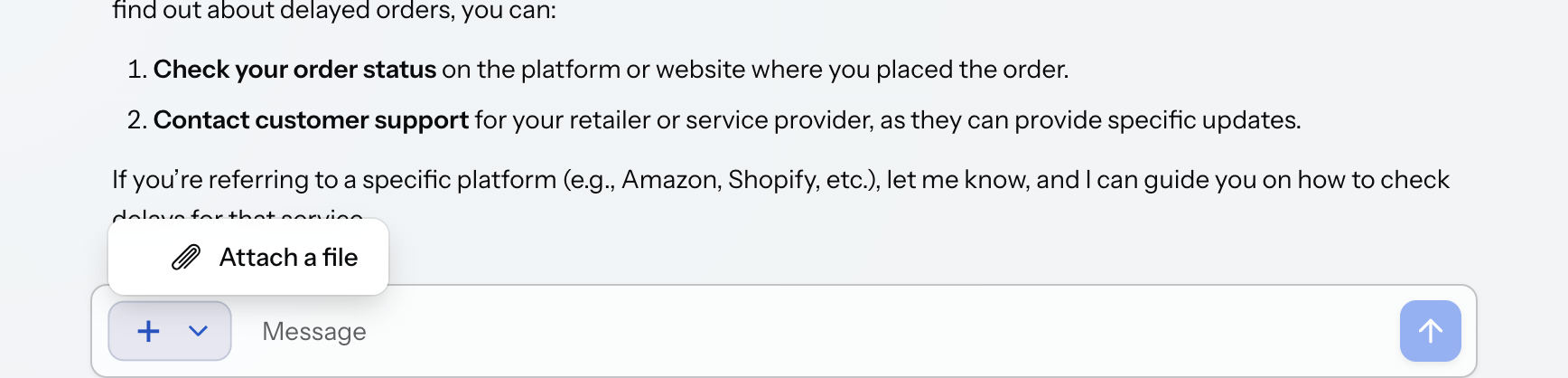
The menu-item theme variant styles the trigger as a row of the menu rather than a button inside it: it drops its own background, padding, and visible border, and aligns its content to the start. Activating it with the keyboard works too. Open the menu and press Enter, and the file picker opens, because a menu item carries the same user activation a button does.
|
A trigger inside a |
A trigger placed directly in the chat, in inputPrefix or inputSuffix rather than inside a menu, needs no aiChatId at all: it finds the chat around it. Outside a chat it can live anywhere in the view, naming its chat by id.

Attached files appear as chips above the input row, a thumbnail for an image and an icon for anything else. Each chip has a button to remove it before sending. The trigger disables itself when the chat it belongs to has attachments turned off.
Rejected Files
A file that breaks one of the limits is refused before it is added. To tell the user why, listen for the rejection:
@Subscribe("chat")
public void onChatAttachmentRejected(
        final AttachmentRejectedEvent<ChatMessage> event) {
    notifications.show(messageBundle.formatMessage("attachmentRejected.notification",
            event.getFileName(), event.getReason().name()));
}
The reason is one of TOO_MANY_FILES, FILE_TOO_LARGE, or INCORRECT_FILE_TYPE.
Storing the Files
The component hands the application the raw bytes and lets it decide where they go. On the zero-configuration path the add-on writes them to the default file storage itself, but a chat bound to your own entity needs a message factory that does it:
@Install(to = "chat", subject = "messageFactory")
private ChatMessage messageFactory(final AiChatMessageContext context) {
    ChatMessage message = dataManager.create(ChatMessage.class);
    message.setRole(context.getRole());
    message.setContent(context.getContent());

    FileStorage fileStorage = fileStorageLocator.getDefault();
    List<FileRef> refs = new ArrayList<>();
    for (AIAttachment attachment : context.getAttachments()) {
        refs.add(fileStorage.saveStream(attachment.name(),
                new ByteArrayInputStream(attachment.data())));
    }
    message.setAttachments(refs);

    return message;
}
The entity holds the results as a list of FileRef. See Messages and Data for the entity itself.
|
Name the attachments in the fetch plan: An attachment collection is not part of |
Sending Files to the Model
Storing a file does not show it to the model. The chat passes the attachments to the provider, and forwarding them to the model is the provider’s job.
|
The model must accept the files. A model that handles text only refuses the whole request, so the chat shows its error banner and no answer is produced. This applies to every attachment, not only images: Spring AI sends any attachment as multimodal data regardless of its type, so a plain text file fails on a text-only model exactly as a photograph does. To try the example below, point the application at a multimodal model. |
The request carries the attachments beside the message text. This provider forwards them, and supplies wording for the case where a message carries files and no text at all:
@Install(to = "chat", subject = "llmProvider")
private Flux<String> llmProvider(final LLMProvider.LLMRequest request) {
    String userMessage = request.userMessage();
    if (userMessage == null || userMessage.isBlank()) { (1)
        userMessage = "Describe the attached files.";
    }
    String text = userMessage;

    Media[] media = request.attachments().stream() (2)
            .map(attachment -> Media.builder()
                    .name(attachment.name())
                    .mimeType(MimeTypeUtils.parseMimeType(attachment.mimeType()))
                    .data(new ByteArrayResource(attachment.data()))
                    .build())
            .toArray(Media[]::new);

    return chatClient.prompt()
            .user(spec -> spec.text(text).media(media))
            .stream()
            .content();
}| 1 | A message with an attachment and no text is valid, but ChatClient.user(String) rejects blank text and fails before the model is reached. Supply wording for that case. |
| 2 | The attachments travel on the request beside the text. Mapping them into Media sends them to the model. |
Downloading from the Conversation
Attachments stay in the message list across reloads, images as thumbnails and other files as chips. Clicking one tells the application which file was clicked, and Jmix’s downloader does the rest:
@Subscribe("chat")
public void onChatAttachmentClick(
        final AttachmentClickEvent<ChatMessage> event) {
    FileRef fileRef = event.getFileRef();
    if (fileRef != null) {
        downloader.download(fileRef);
    }
}
aiUploadTrigger
XML Element |
|
|---|---|
Java Class |
|
The following attributes are specific to aiUploadTrigger:
| Name | Description | Default |
|---|---|---|
Identifies the chat the trigger attaches files to. Required unless the trigger is placed directly inside the chat. See Choosing Files. |
— |
|
Sets the icon of the trigger. |
— |
|
Sets the label of the trigger. |
— |
|
Applies theme variants. |
— |
The following shared attributes are supported by aiUploadTrigger:
id - alignSelf - ariaLabel - ariaLabelledBy - classNames - colspan - css - enabled - focusShortcut - height - justifySelf - maxHeight - maxWidth - minHeight - minWidth - tabIndex - visible - width
The trigger disables itself when the chat it belongs to has attachments turned off, on top of whatever enabled says.
See Also
-
Messages and Data: the entity that holds the attachments.
-
aiMessageInput: the message input that collects them.
-
aiMessageList: the message list that renders them.