Editing Geo-object Geometries on a Map
The Maps add-on enables users to visually edit geometries of geo-objects. Instead of editing geometry data as text in a field, users can now interact with geometries directly on a map. This intuitive interface allows users to move geometries, modify lines, and perform other edits visually, simplifying the geo-data management process.
Both VectorSource and DataVectorSource support the following feature editing modes:
-
Select Mode: allows users to select features on the map.
-
Drag Mode: allows users to drag features to new locations on the map.
-
Modify Mode: allows users to modify the geometry of features, such as vertices and lines.
-
Delete Mode: allows users to delete features from the map.
Select Mode
To enable feature selection, set the featureSelectEnabled attribute of the vector source to true.
<maps:vector id="layer">
    <maps:dataVectorSource id="source"
                           featureSelectEnabled="true"
                           dataContainer="regionsDc"
                           property="area"/>
</maps:vector>
When enabled, this mode allows users to select features on the map by clicking them. For multi-selection, users can use the Shift + click combination.
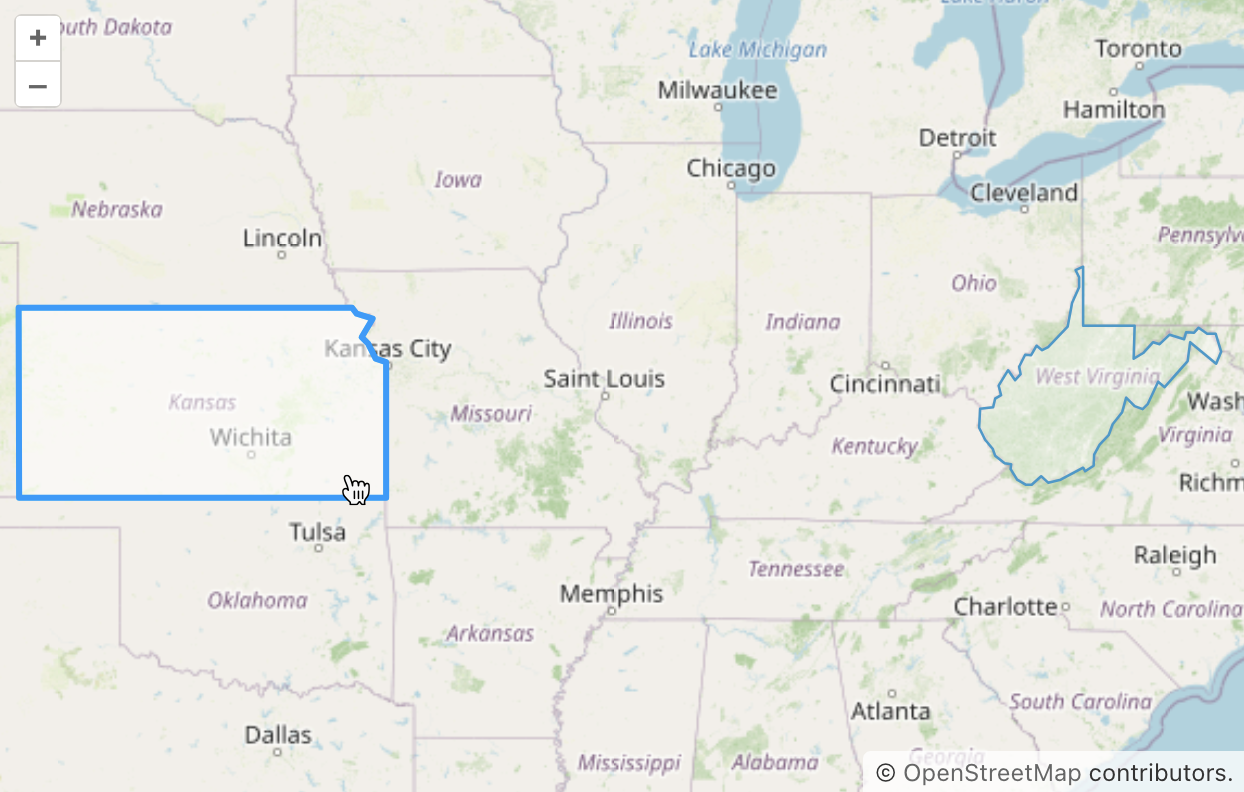
| When the select mode is used in conjunction with drag or modify modes, only the selected features can be dragged or modified. |
The select mode provides a select event for handling the selection and deselection of features. See the Source Events section for more details.
You can also style the selected features to highlight them visually. Refer to the Select Mode Styles section for more information.
Drag Mode
To enable feature dragging, set the featureDragEnabled attribute of the vector source to true. This will activate a control button  on the map that enables dragging mode.
<maps:vector id="layer">
    <maps:dataVectorSource id="source"
                           featureDragEnabled="true"
                           dataContainer="regionsDc"
                           property="area"/>
</maps:vector>
For example, here’s how the drag mode looks when enabled:
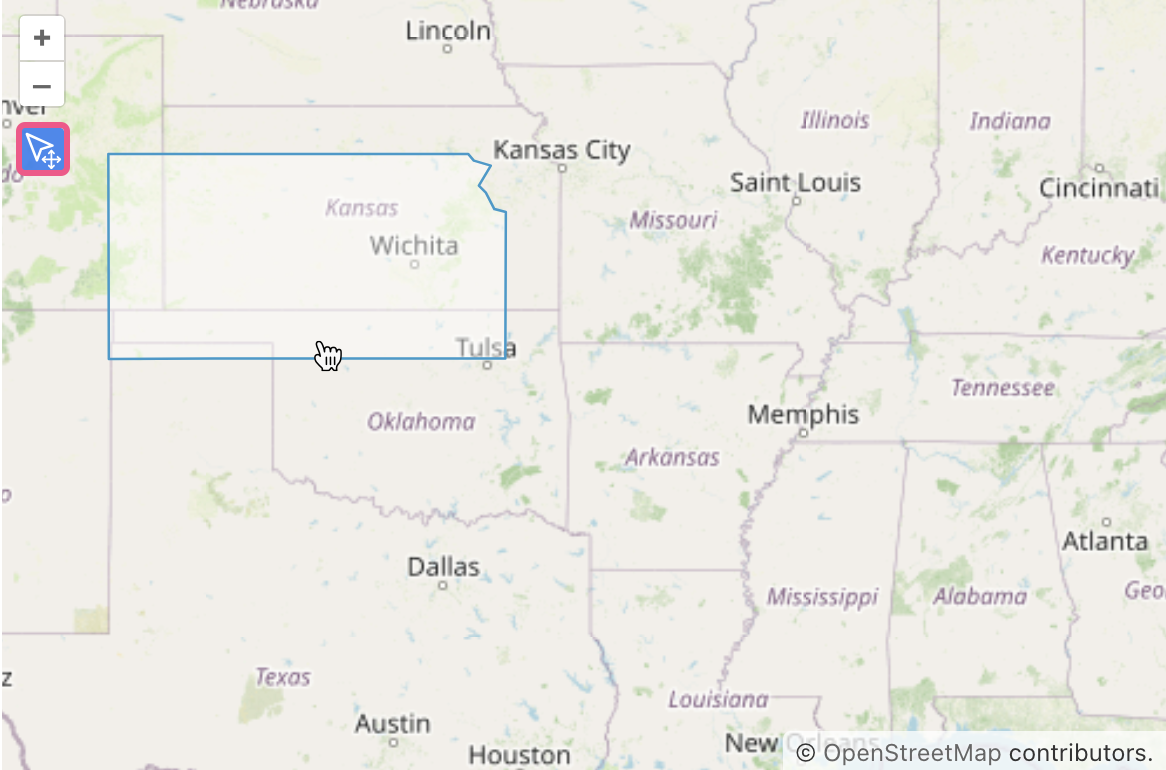
This mode provides events to handle the start and end of dragging; see the Source Events section for more details.
Modify Mode
To enable feature modification, set the featureModifyEnabled attribute of the vector source to true
<maps:vector id="layer">
    <maps:dataVectorSource id="source"
                           featureModifyEnabled="true"
                           dataContainer="regionsDc"
                           property="area"/>
</maps:vector>
This will activate a control button  on the map that enables modify mode. In this mode, a vertex is rendered that can be dragged to modify a feature or clicked to remove it.
For example, here’s how the modify mode looks when enabled:
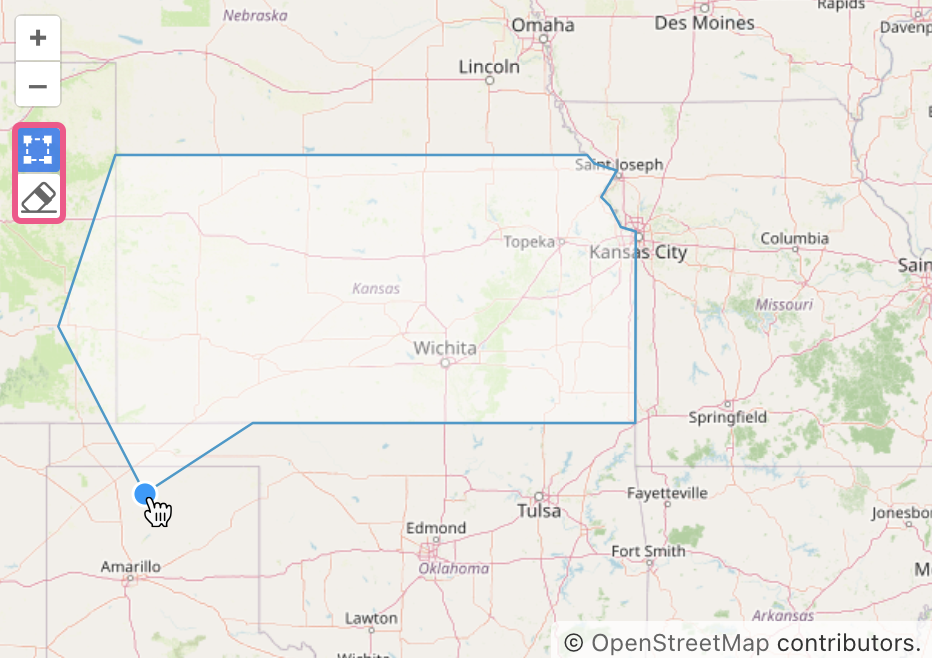
This mode provides events to handle the start and end of modifications. For more information, see the Source Events section.
You can also style the generated vertex points. See the Modify Mode Styles section for more details.
Delete Mode
Since Jmix 3.1
To enable feature deletion, set the featureDeleteEnabled attribute of the vector source to true. Deletion doesn’t depend on modify mode, so you can enable each of them separately.
<maps:vector id="featureLayer">
    <maps:vectorSource id="featureSource"
                       featureModifyEnabled="true"
                       featureDeleteEnabled="true"/>
</maps:vector>
This will activate a control button  on the map that enables delete mode. When this mode is active, users can click on a feature, and a confirmation dialog will appear before deletion. The button is shown if at least one source on the map has deletion enabled.
When a feature is deleted, the source fires an event. See the SourceFeatureDeleteEvent section.
If featureDeleteEnabled is not set, deletion is disabled by default. If the jmix.maps.ui.feature-modify-includes-delete application property is true, modify mode also enables deletion for such a source. This was the behavior before Jmix 3.1, when featureModifyEnabled="true" always enabled deletion as well. The default value of the property is false. When you upgrade a project from an earlier version, Studio sets it to true to keep the previous behavior. To control deletion for each source separately, set featureDeleteEnabled on the sources that need it and remove the property.
The following table shows when deletion is enabled for a source:
featureDeleteEnabled |
jmix.maps.ui.feature-modify-includes-delete |
featureModifyEnabled |
Deletion |
|---|---|---|---|
not set |
|
any |
disabled |
not set |
|
|
disabled |
not set |
|
|
enabled |
|
any |
any |
disabled |
|
any |
any |
enabled |