BPM
Business Process Management (BPM) refers to the systematic approach to improving an organization’s processes. It encompasses the design, execution, monitoring, and optimization of business processes to enhance efficiency and effectiveness.
In Jmix, the functionality for modeling and running business processes is provided by the BPM add-on.
| Explore the Bookstore online demo application to see Jmix BPM add-on in action. |
Installation
|
The Jmix BPM add-on requires the BPM subscription. If you don’t have the subscription, see the Enterprise+BPM Trial section for how to get a trial version. |
For automatic installation through Jmix Marketplace, follow instructions in the Add-ons section.
For manual installation, follow the steps below.
-
Configure access to the premium repository.
-
Add the premium repository to your
build.gradle:repositories { // ... maven { url = 'https://global.repo.jmix.io/repository/premium' credentials { username = rootProject['premiumRepoUser'] password = rootProject['premiumRepoPass'] } } } -
Add premium repository credentials to
~/.gradle/gradle.properties:premiumRepoUser=123456123456 premiumRepoPass=abcdefabcdefGet the repository credentials from your license key: the first part of the key before dash is the repository user name, the part after dash is the password. For example, if your key is
123456123456-abcdefabcdef, then the user name is123456123456and the password isabcdefabcdef.
-
-
Add dependencies to your
build.gradle:implementation 'io.jmix.bpm:jmix-bpm-starter' implementation 'io.jmix.bpm:jmix-bpm-flowui-starter'
|
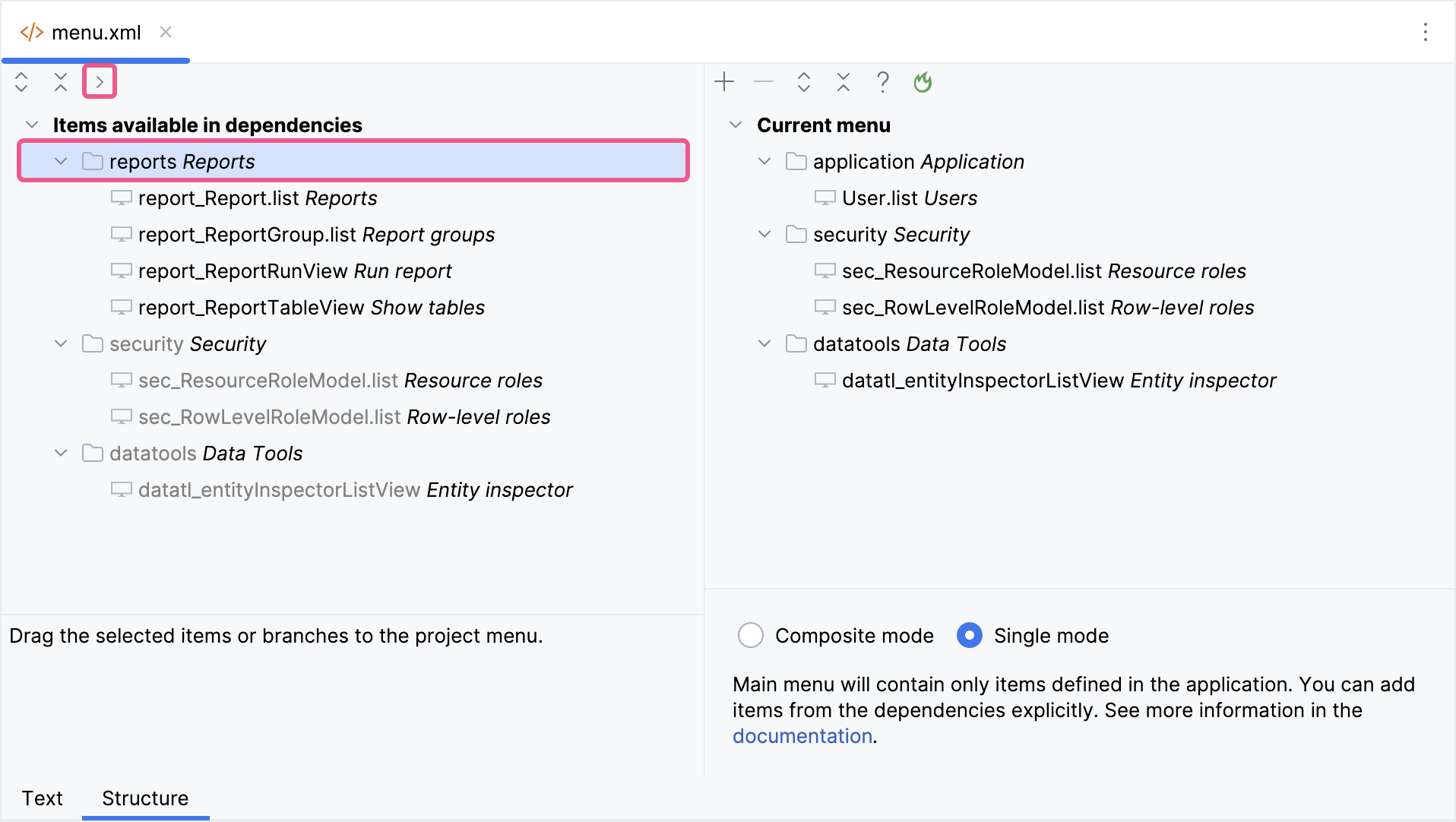
Important Note for Single Menu Mode Applications If your application uses Single menu mode, you should manually add menu items after installing an add-on.
This step is required because applications in Single menu mode do not automatically merge add-on menus with the existing structure. |
Oracle Database Note
When the application starts, the Flowable engine checks if the ACT_GE_PROPERTY table exists. If the application is using Oracle Database as the data source, you might see this error:
oracle.jdbc.OracleDatabaseException: ORA-00942: table or view does not exist
One possible cause of the ORA-00942 error is that the table belongs to a schema that is different from default and is not referenced correctly. This can occur when the database has multiple users.
To resolve this issue, explicitly set the schema by adding this line to your application.properties file:
flowable.database-schema=<db_username>
Replace <db_username> with the actual database username.