Displaying Dynamic Attributes
When you create a new detail or list view in the project with the Dynamic Attributes add-on installed, the framework provides the ability to use the dynamicAttributes facet in XML descriptors.
Another method to show dynamic attributes in views is by employing the DynamicAttributesPanel.
Using dynamicAttributes Facet
The dynamicAttributes facet enables the display of dynamic attributes in DataGrid or FormLayout components that are associated with a data container containing entities with dynamic attributes.
In Views
To use dynamic attributes in a view, include the dynamicAttributes facet in the facets section of the view XML descriptor:
<view xmlns="http://jmix.io/schema/flowui/view"
      xmlns:dynattr="http://jmix.io/schema/dynattr/flowui"
      title="msg://carDetailView.title"
      focusComponent="form">
    <facets>
        <dynattr:dynamicAttributes/>
        <dataLoadCoordinator auto="true"/>
    </facets>
    <!--...-->
</view>
After adding the facet, you can select this view in the Category attribute details dialog on the Visibility tab.
In Fragments
The dynamicAttributes facet can also be used in fragments.
Add the facet to the fragment XML:
<fragment xmlns="http://jmix.io/schema/flowui/fragment"
          xmlns:dynattr="http://jmix.io/schema/dynattr/flowui">
    <data>
        <collection id="usersDc"
                    class="com.company.demo.entity.User">
            <fetchPlan extends="_base"/>
            <loader id="usersDl" readOnly="true">
                <query>
                    <![CDATA[select e from User e order by e.username]]>
                </query>
            </loader>
        </collection>
    </data>
    <facets>
        <dynattr:dynamicAttributes/>
        <fragmentDataLoadCoordinator auto="true"/>
    </facets>
    <content>
        <vbox id="root">
            <dataGrid id="usersDataGrid"
                      width="100%"
                      columnReorderingAllowed="true"
                      minHeight="20em"
                      dataContainer="usersDc">
                <columns resizable="true">
                    <column property="username"/>
                    <column property="firstName"/>
                    <column property="lastName"/>
                    <column property="email"/>
                    <column property="timeZoneId"/>
                    <column property="active"/>
                </columns>
            </dataGrid>
        </vbox>
    </content>
</fragment>
Fragment controller example:
import com.vaadin.flow.component.orderedlayout.VerticalLayout;
import io.jmix.flowui.fragment.Fragment;
import io.jmix.flowui.fragment.FragmentDescriptor;

@FragmentDescriptor("dynamic-attributes-fragment.xml")
public class DynamicAttributesFragment extends Fragment<VerticalLayout> {
}
Then create a view that uses this fragment.
|
A fragment using the When configuring dynamic attribute visibility, the identifier for a view that uses a fragment follows this pattern: 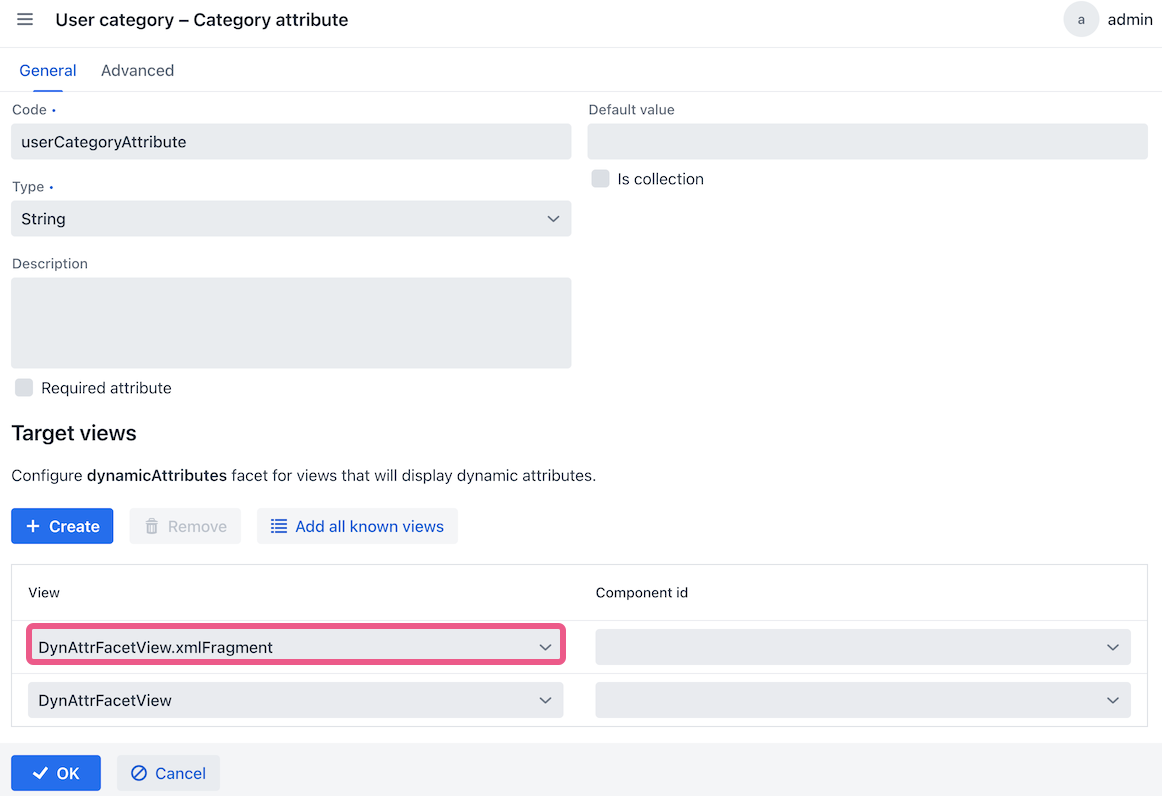
|
Using DynamicAttributesPanel
If an entity implements the Categorized interface, you have the option to use the DynamicAttributesPanel component to showcase the dynamic attributes associated with the entity. This component facilitates the selection of a category for a specific entity instance and the specification of values for the dynamic attributes within that category.
To integrate the DynamicAttributesPanel component into a detail view, follow these steps:
-
Make sure the
categoryattribute is included into the fetch plan of your categorized entity:<data> <instance id="carDc" class="com.company.demo.entity.Car"> <fetchPlan extends="_base"> <property name="category" fetchPlan="_base"/> </fetchPlan> <loader/> </instance> </data> -
Add the
dynamicAttributesPanelvisual component to the view:<layout> <formLayout id="form" dataContainer="carDc"> <textField id="numberField" property="number"/> <textField id="modelField" property="model"/> <dynattr:dynamicAttributesPanel dataContainer="carDc" categoryFieldVisible="true"/> </formLayout> <!--...--> </layout>
Adding to Business Process Form
With the BPM add-on, dynamic attributes can be loaded and displayed on process forms. For details and an example, see Loading Dynamic Attributes.
